About Resource Categories and Resources
What is the difference between a Resource Category and a Resource?
- Resource Category: A Resource Category gets applied to a Resource; you can define the Business Type and services applicable to this category. This can be done in Central Office or at a location. From the Resource Category maintenance form, you can choose a color scheme for the Resource's column header in the Appointment Book's Resource View.
- Resource: A Resource is a particular room or area within the business that is required to provide a service, such as a massage room. Assigning a resource to a service makes that service bookable in a resource, and prevents clients or employees from booking appointments at times when a service's resource is not available. Resources are created and assigned at locations only.
Note: Be sure to review details on the Business Information setting that affects how Meevo auto-assigns employees in resources.
How do I associate a Resource with a Service?
This can be done through the Resources or Resource Categories maintenance forms, or the Services > Resources form. When you associate one or more services with a Resource or Resource Category, if any of the services listed are selected in the Appointment Editor, Meevo will attempt to book in the associated resource. If the associated resource is not available, the user can select any other available resource, but a resource must be selected to book that service.
Am I required to select a Resource Category for a Resource?
Yes, a Resource needs to be assigned a Resource Category.
How do I get a Resource to appear in the Appointment Book?
When you create a resource, it automatically appears in the Appointment Book under Resource View. Resource hours in the Appointment Book correspond with the business hours you set up in Business Information.
What is the meaning of the colored dots that appear beside Resources in the Appointment Editor?
The Resource drop-down displays resources that can have a red, yellow, or green dot:
- Green: The resource is available and will be auto-assigned.
- Yellow: The resource is available but will not be auto-assigned. This status can occur if a client is already booked in that Resource, but the Resource has a client capacity greater than 1. In this scenario, the only way to book this Resource is to book it manually in Appointment Editor.
- Red: Resource is not available.
How does the color scheme affect the Appointment Book?
The Appointment Book Style color scheme controls color of the client capacity column headers when you are viewing the Appointment Book in Resource View. In the example below, Room 3's Appointment Book Styles are set to black text and green background. There are 3 numbered columns because Room 3 has a maximum client capacity of 3.
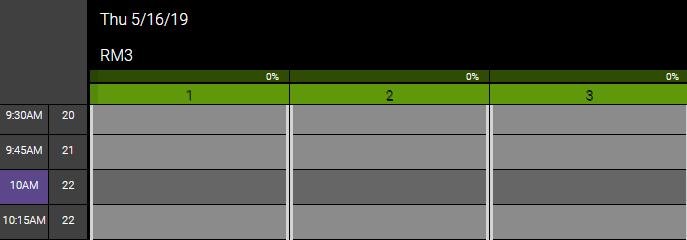
What happens if I configure a color scheme for a Resource and a Resource Category?
Editing a Resource's color scheme will override the color scheme set in the Resource Category.
Are there any prerequisites to creating Resource Categories?
- Services
- Service Categories (required for Services)
Are there any prerequisites to creating Resources?
- Resource Categories
- Services (not required, but recommended)
- Service Categories (required for Services)