Booking and Ringing Up a Student
To book a service with a student
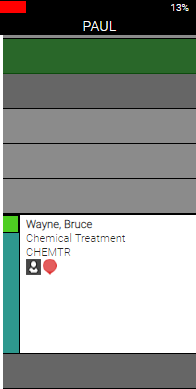
After you create a student profile and schedule for that student, the student will appear in the Appointment Book, where they can be booked just like a regular employee. Below, Paul is a student. He appears in the book just as any employee would, and we can book a service with him through the usual methods.
To ring up a student-performed service or student-sold product
When ringing up a student-performed service or student-sold product in the register, you will be able to select the overseeing teacher. This teacher field appears in the register if checking out an appointment from a student's column in the Appointment Book, if adding a product in the register where the credited employee is a student, or if adding a service to the register where the credited employee is a student.
- The workflow is slightly different depending on how you are ringing up the client:
- After selecting Checkout from the Appointment Book, you are brought to the register. Notice that the Smart Receipt displays Overseen by: No teacher selected, and the right pane is on Teacher selection.
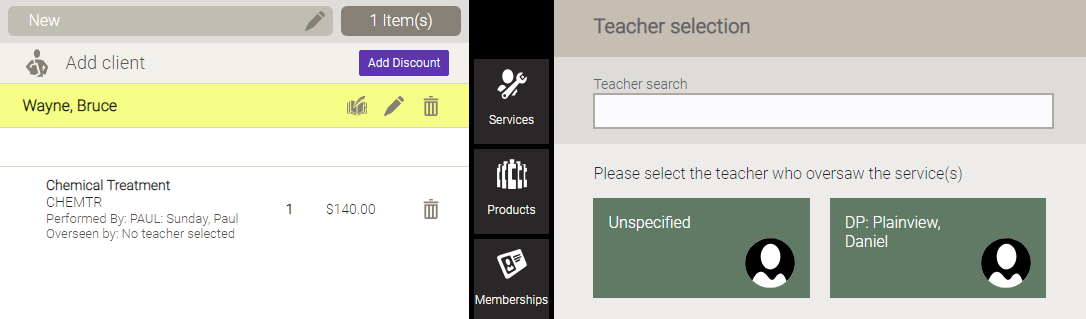
- If adding a service or product directly in the register, select the student to receive credit (the one who performed the service or sold the product). The Teacher selection automatically appears in the right pane. In this scenario, the Smart Receipt remains blank until you select an overseeing teacher.
- Select the teacher who oversaw the service. The Smart Receipt is automatically updated with the teacher's name.

- Finalize the sale.
To select or change a student or overseeing teacher in Transaction Editor
If you did not select an overseeing teacher in the register, or if you'd like to change the overseeing teacher or student, you can do this from the Transaction Editor.
- Locate the transaction.
- Edit the fields and save your edits when finished.
