Inactivating or Reactivating an Employee Profile
If an employee is leaving your business or taking an extended leave of absence, you should inactivate the employee's profile. When you inactivate an employee's profile:
- Only the employee's login is inactivated. To remove an employee completely from Meevo, terminate the employee.
- The profile is removed from the default employee form search results, resulting in less clutter in your search results. It will not appear in search results unless Inactive is selected from the Advanced menu.
- Existing appointments and blocks are not affected and remain in the Appointment Book.
- If the employee does not have any appointments or blocks on the book and is made inactive, the employee is removed from the Appointment Book (even if Show on schedule is enabled on their profile). They also will not appear in the Employees field in Appointment Editor.
- If the employee does have at least one appointment or block on the book, the employee will remain in the Appointment Book and continue to be selectable in the Employees field in Appointment Editor.
- Inactivating an employee profile does not remove the data associated with that employee. When you run a report with All Employees selected, Meevo includes inactive and deleted employee data.
To inactivate an employee profile
The steps below inactivate the client's profile at your location only. If the client profile exists at other locations, the profile will not be made inactive at those locations.
- Locate and select the employee profile.
- Select Edit.
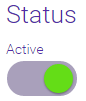
- Under Status, select the Active switch to toggle it to Inactive.

- Select Save.
To reactivate an employee profile
- Locate and select the profile. Remember to select Inactive from the Advanced Search menu to search for inactive profiles.
- Select Edit.
- Under Status, select the Inactive switch to toggle it to Active.
- Select Save.