Configuring 2-Way SMS Options and Notifications
- Open Meevo Messenger (Meevo > Management > Meevo Messenger or type meevomessengersettings into the Convobar).
- Select the gear icon to open Meevo Messenger Settings.
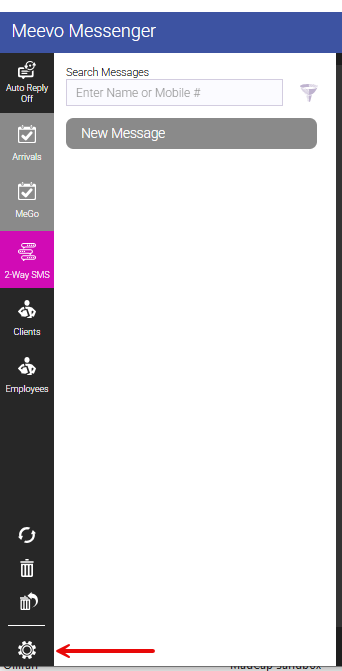
- In Meevo Messenger Settings, select the 2-Way SMS tab.
- Select Edit to begin making changes.
Note: The Login field is your text-enabled SMS phone number; this field is read-only and cannot be changed.
Adjusting the color of message bubbles
Under General Settings, you can change the color of incoming message bubbles and outgoing (reply) message bubbles using the color pickers.
Setting up Auto Replies
When Auto Replies are enabled, Meevo will automatically respond to client messages so that you don't miss anything during off-hours or busy times.
Under Auto Replies, you can adjust the text for the three message types, or leave the default messages if desired.
Tip: To recover the original, default text for any of the message types, simply delete all of your custom text from the message and Save. The default message is automatically added back to the message text box.
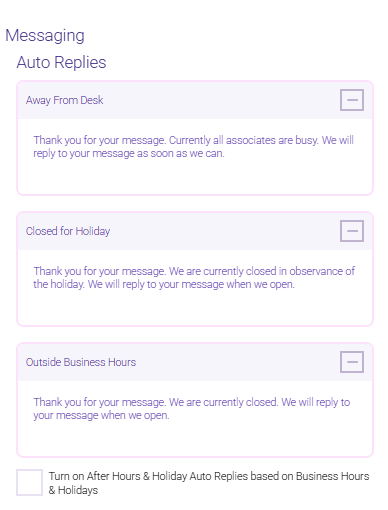
- Away From Desk: Craft this message to reflect that your business is open, but no associates can currently reply. Let the client know you will reply as soon as possible.
- Closed for Holiday: This message should inform clients that your business is closed due to a holiday, and you will reply when the business is open. If the Turn on After Hours & Holiday Auto Replies... option is enabled, this automatic reply is sent on holidays (as defined in Business Settings > Holidays).
- Outside Business Hours: This message should inform clients that your business is closed and you will reply when the business is open. If the Turn on After Hours & Holiday Auto Replies... option is enabled, this automatic reply is sent outside of business hours (as defined in Business Information > Main tab).
Tip: For details on using this feature, see Using Auto Replies in Meevo Messenger.
Enabling Auto Replies
Enable the Turn on After Hours & Holiday Auto Replies based on Business Hours & Holidays option to have Meevo Messenger automatically send the appropriate reply:
- Outside Business Hours (when your business is closed according to your hours in Business Information > Main)
- Closed for Holiday (when your business if closed according to your holidays in Business Settings > Holiday).
If both conditions are true (it is a holiday and currently outside of business hours), then only the holiday message will be sent.
Note that this option takes effect only if auto replies were not manually turned on in Meevo Messenger (Auto Reply Off appears in Meevo Messenger). If Auto Reply On appears in Meevo Messenger, then the Turn on After Hours & Holiday Auto Replies... option is disabled.
Setting up Quick Responses
Quick Responses are short, pre-crafted messages that allow a user to quickly reply to a client when time does not allow for a typed-out response.
- Select Add New Quick Response and fill out the required fields.
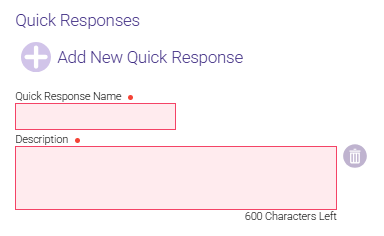
- Select OK when finished.
- Use the arrows to the left of each response to reorder how they appear in the main chat window. You can create up to 20 Quick Responses.
Tip: For details on how to use this feature, see Using Quick Responses in Meevo Messenger.
Setting up notifications
The employees you select here will be able to see incoming text message updates in real-time while working in Meevo. As an alert, the Meevo Messenger tab will pulse and display the number of conversations that have unread messages.
Tip: See this article for more information on the various ways that Meevo Messenger lets you know you have new messages.

Important: To see message updates in real-time, an employee must have Grant security permissions to the 2-Way SMS Business Booster and be selected in the Employee list. Otherwise, Meevo Messenger will need to be refreshed in order to see new messages. For ease-of-use, MSI recommends you select every employee who may potentially use this Business Booster.
Tip: For complete details on how notifications work with Meevo Messenger, see Meevo Messenger Notifications.
What's Next?
Explore more articles to help you get the most out of 2-Way SMS:
- 2-Way SMS: Getting Started: Details on enabling the Business Booster and applying for a Hosted Number.
- Meevo Messenger Notifications: Details on the ways Meevo Messenger alerts employees to new messages.
- Using Meevo Messenger: A guide to sending and receiving 2-Way SMS messages through Meevo Messenger.
- Using Auto Replies in Meevo Messenger: Automatically respond to client messages during off-hours or busy times.
- Using Quick Responses in Meevo Messenger: Save time with pre-written replies to common questions and requests.