Granting Access to Meevo 2 BI
Access to Meevo 2 BI is granted through the Security tab of each individual employee's profile. By default, new and existing employees will not be able to log into Meevo 2 BI until access is granted on the employee profile.
To grant a user access to Meevo BI
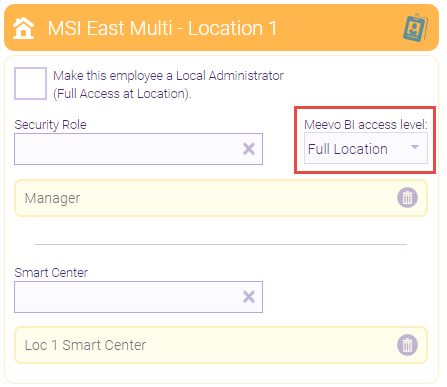
The Meevo BI access level drop-down below a location determines the employee's level of access in Meevo 2 BI.
Tip for multi-locations: If your business has multi-location employees, we recommend configuring Meevo 2 BI access from the employee's profile in Central Office. This way, you can grant Meevo 2 BI access to several locations from one screen.
- Locate and select the Employee profile.
- Select the Security tab.
- Meevo 2 BI access is granted using the Meevo BI access level drop-down under each desired location.
Note: Enabling Make this employee a Local Administrator (Full Access at Location) will grant the employee Full Location access within that location.
- None: The employee cannot log into Meevo 2 BI.
- Employee: The employee can log into Meevo 2 BI for that location and view only their personal metrics.
- Full Location: The employee can log into Meevo 2 BI for that location and view all metrics for all employees in that location.
- When finished, select Save.
Important details for Multi-Locations
- Any of the following configurations will grant an employee Full Location access to all locations and employees under Central Office:
- Enabling Make this employee a Full Access User at the top of the Security tab. The Meevo BI access level drop-down disappears under each location when the Full Access User option is enabled.

- Enabling Make this employee a Local Administrator (Full Access at Location) under the Central Office location. The Meevo BI access level drop-down cannot be edited when the Full Access at Location option is enabled.
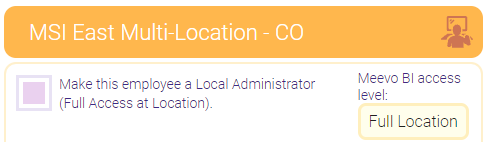
- Setting the Meevo BI access level to Full Location under the Central Office location.

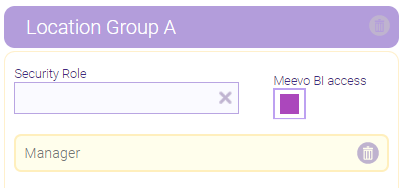
- Enabling Meevo BI access for a Location Group grants the employee Full Location access to all locations in the Location Group. There is no access level drop-down for Location Groups; only Full Location access can be granted.