Configuring CORE Royalty Export Exclusions
Which items are captured by the export?
By default, all of the following are included: sales from services, products, packages, memberships, and gift card types, along with payment types and any applied discounts.
Package tips, taxes, and tip-only transactions are not included in the export data. Also, an item's active/inactive/deleted status is not considered; if the item impacted sales, then that sale information will be included in the export.
Can I exclude any of these items?
Yes! From the Exclusions tab, you can specify one or more items from each category (except Payment Types) to exclude. Note that to exclude an item, it must be owned by Central Office. Location-owned items are always captured by the export and cannot be excluded.
What if I add an exclusion after I've already scheduled an export?
The exclusion list is applicable to all exports, regardless of when they were scheduled; the Royalty Export honors the current exclusion list each time an export runs.
To configure CORE Royalty Export exclusions
Items added to the exclusion list will be omitted from every Royalty Export:
- Go to Meevo > Management > Royalty Export Settings.
- Select the Exclusions tab, and select Edit.
- For each category, you can use the drop-down to select specific items to exclude from the export. Remember, an item must be CO-owned to be eligible to be excluded.
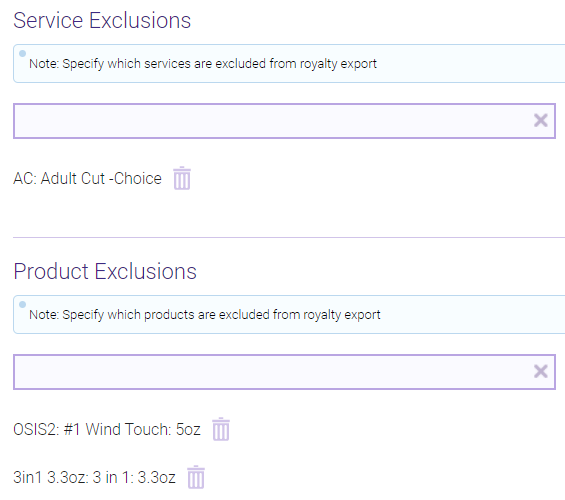
Note: Select the trash can at any time to remove an item from the list.
- When finished, select Save.
- Finally, schedule a CORE Royalty Export by selecting the Main tab or selecting the Schedule an export button.