Techsphere Integration Frequently Asked Questions
To learn about the features and benefits that come with a Meevo ‒ Techsphere integration, go to the MeevoXchange, select Integrations, and select the Techsphere tile.
How does Techsphere work with Central Office and multiple locations?
In a multi-location business model, only locations can set up and use this integration.
How do I set up the Techsphere integration?
Techsphere will work with you and your business to set up the vascular scanner and ensure it synchronizes with Meevo. Techsphere will also enable scanning for your students and employees.
Note: As part of the setup process, you should create a user profile and accompanying Security Role specifically for this integration so that the Techsphere app and Meevo can communicate. This user profile should not log in, as password change prompts can cause issues with communication with the integration. The Security Role requires GRANT access to Data, and GRANT access to the Employees key. For the purpose of security, we recommend setting all other keys and sub-keys to Hide. The Security Role should be created in Central Office so that all locations have access to it, and a user profile should be created at each location.
How does Meevo change when I add the Techsphere integration?
Here are the ways that adding the Techsphere integration affects Meevo:
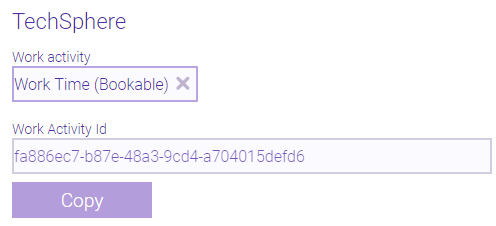
- A Techsphere launch tile appears in the Integration menu, where you can configure the integration by selecting the Work Activity that will be associated with each clock action. This screen also displays the Work Activity Id; this ID is not editable and is used by Techsphere during the setup process. See Selecting the Techsphere Work Activity for more details on this option.
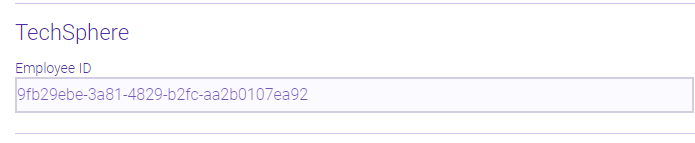
- A Techsphere Employee ID appears at the bottom of each employee or student's profile. This ID is not editable and is used by Techsphere to enable scanning for each student and employee.
- Selecting a day that has Techsphere clock data will reveal the usual Schedule Editor slideout, along with a new Show Techsphere Clocks button. Select it to view details on all of that student's/employee's Techsphere clock events for that day and, if necessary edit the actuals. This is explained further in Viewing Techsphere Clock Actuals.

- Meevo automatic clock out functionality is disabled, which means the Automatically clock out employees who have clocked in but not clocked out for their scheduled time option in Payroll Settings is ignored.
- Meevo no longer forces clock-ins for scheduled Work Activities, which means the Must clock in option in Work Activities is ignored.
How do students or employees use the scanner?
See Using the Techsphere Scanner for details on clocking and breaking in or out.