Customizing eGift Notifications
eGift notification details
- eGift delivery method: The purchaser receives a confirmation email immediately after purchase, and the recipient will receive the eGift in an email on the Activation Date. See Processing eGift (Email) Orders for additional information on this delivery method.
- Mail delivery method: The purchaser receives a confirmation email immediately after purchase. A shipping notification will be sent after it's marked as Shipped (this can be edited in Meevo > Management > eGift > Notifications). See Processing Mail and Pick Up eGift Orders for additional information on this delivery method.
- Pick Up delivery method: The purchaser receives a confirmation email immediately after purchase and receives a notification email 5 minutes after the order status is updated to Picked Up. See Processing Mail and Pick Up eGift Orders for additional information on this delivery method.
To customize your notifications
From the Notifications tab of eGift, you can customize the purchaser and recipient emails. If you are offering packages, you are able to customize separate recipient notifications for gift cards vs packages.
Note: The location receiving eGift funds must have email notifications turned on for Meevo to send eGift email notifications.
- On the Notifications tab, select Edit.
- Customize the content of the emails as needed.
- Under eGift Recipient Email, you can select an item type to view the template (Gift Card or Package) and maintain separate templates based on the item type.
- For Mail deliveries, you can configure the eGift Shipping Information for Purchaser template.
- For eGift Purchaser Email, you can customize all three delivery method emails. Simply change the Filter by Delivery Method drop-down and select Apply to load that notification.
- At any time, you can select Reset to revert to the system default message. You can also select Preview to see how your message will appear in an email.
Note: The confirmation email that the purchaser receives when the gift card is ready to be picked up is not viewable or customizable in Meevo.
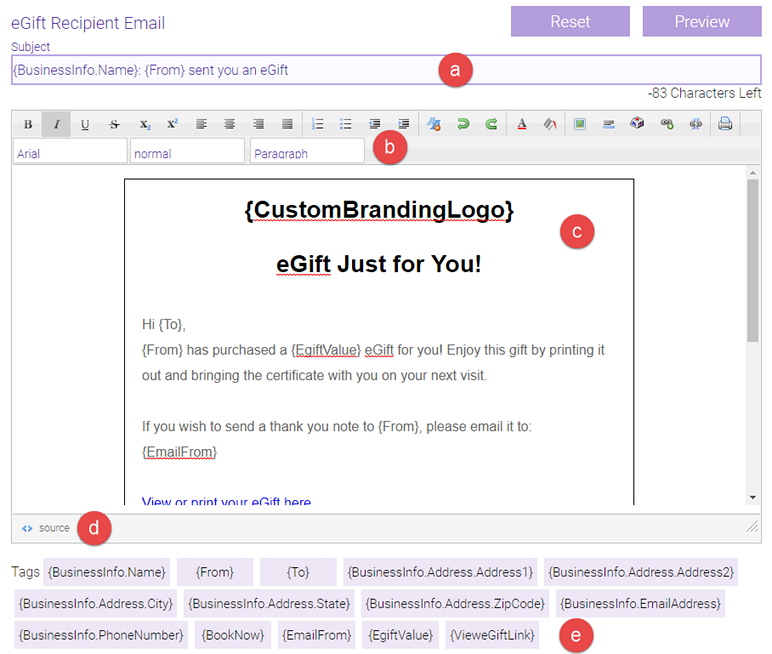
- This is the email's subject line. Make sure this clearly identifies your business as the sender. Meevo provides a character countdown to ensure you don't go over the limii.
- Enter a Subject Line that explains the content of the email.
- Use the formatting bar and drop-downs to customize the email. If using a mouse, scroll over the button to see a tooltip as to what that button does.
- This is the content of the email. We've divided it into three sections: the header at the top (largest size font), the body (normal size font), and the footer at the bottom (smallest size font). You can change the wording and size of this text to anything you like, but we recommend keeping this general layout, as it's what clients are used to seeing in email communications.
- Here, you can switch between viewing the message in HTML (select Source) or viewing the message in a more user-friendly format (select wysiwyg, which stands for "what you see is what you get). Viewing the email in Source mode allows you to edit it in HTML, which may be desirable for those with web design experience.
- These are the tags you can use to build the message. See Tag definitions for details.
- When finished preparing the message, select Save.
Tag definitions
- {BusinessInfo.____}: Every tag that begins with BusinessInfo. is pulling that information from fields in Meevo's Business Information > Main tab. For multi-locations, this information is pulled from the location that is receiving eGift funds.
- {From}: This is the From field that the client fills out during the gift card selection step in eGift.
- {To}: The recipient of the gift card. This is the To field the client fills out during the gift card selection step in eGift.
- {BookNow} (Recipient email only): This is a link that, when selected, brings the client to your business's Online Booking website.
- {EmailFrom}: This is the Sender's Email field the client fills out during the eGift checkout process.
- {EgiftValue}: The value of the gift card as defined by the client/purchaser in eGift.
- {VieweGiftLink}: Provides a link to the gift card for the purchaser to view and for the recipient to print.
- {EgiftNumber} (Purchaser email only): This appears in eGift/email deliveries only; it is the number of the purchased gift card.
- {PromoCode} (Purchaser email only): The promo codes that were used in the transaction, if any.
- {DeliveryMethod} (Purchaser email only): The delivery method chosen by the client during the first step of the eGift purchase process. A client can choose only one delivery method per transaction.
- {egiftFinalPrice} (Purchaser email only): The total price paid for that gift card.
- {CustomBrandingLogo}: The logo you uploaded in Custom Branding > Cover Design tab.
- {SocialMedia.___}: Every tag that begins with SocialMedia. is pulling that information from Social Media Links fields in Meevo's Business Information > Main tab. For multi-locations, this information is pulled from the location that is receiving eGift funds.
- {ProcessingFee}: The configured processing fee, if any.
- {ShippingFee} (Purchaser Mail delivery method only): The configured Shipping Fee, if any.
- {ShippingRateDisplayName}: The Shipping Rate's configured Display Name