Setting Up eGift Promotions
The eGift Promo Options tab displays all promotions you have created for eGift, including both active and expired offers.
- eGift promotions are managed separately from standard Register Discounts.
- At this time, eGift promotions apply only to eGift cards.
- From a location, the eGift Promo Options page displays details for all active, CO-created promotions. If a location does not want to use a CO-created promotion, they can delete or inactivate that promotion from this screen.
Tip: In addition to earning awards through eGift promotions, clients can also earn points on eGift purchases. Simply set up a Points for Gift Card Purchase Client Point Promotion and configure it for purchasing any gift card type.
How do clients know there's a promotion?
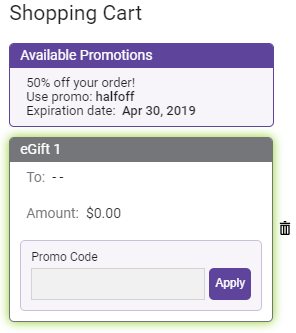
Under Shopping Cart, the client can view all non-silent Available Promotions. This is also where the client can redeem the Promo Code. Note that Promo Codes are not case-sensitive.
The Promo Options page
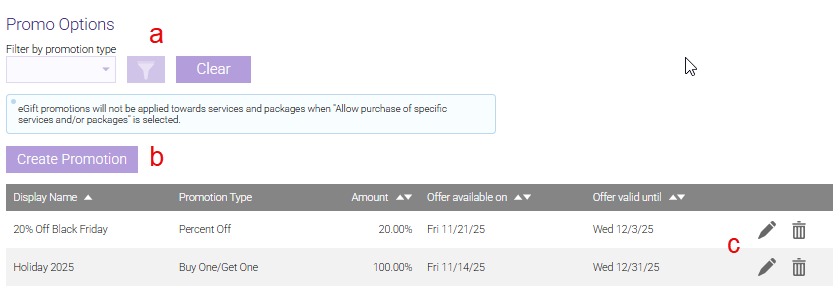
- Filter by promotion type filters the list to the selected promotion type. You can also use Advanced Search to search for deleted or inactive promotions. From a location, you can also use the Filter by filter (not shown) to display all promotions, CO-owned promotions, or location-owned promotions.
- Select Create Promotion to create a new promotion.
- To edit or inactivate a promotion, simply select it from the row to open the Promo Options page. From here, you can quickly reinstate a past promotion by simply editing it and changing its Offer available on and Offer valid until dates. You can also delete promotions using the icon in this column.

To create a new promotion
- Select Create Promotion.
- Display Name: Enter a display name for this promotion. This will be how you identify the promotion on the Promo Options page.
- Promotion code: This is the code the client will enter to redeem the promotion. Try to make the code descriptive of the promotion itself, such as halfoff for a 50% discount or something similar.
- Offer available on and Offer valid until: The promotion will be active during the date range entered here.
- Promotion Type: This determines the kind of promotion you'll offer:
- Promotional Gift Card: Select this option to create a promotion using a Promotional Gift Card Type. Only Gift Card Types that have the Promotional Gift Card option enabled will appear in the selection list.
- Specific Amount Off: Select the Promotion amount (the amount to deduct from the total). You can also set a Min and Max Purchase Amount to limit use of this promotion to that price range. Leaving these at $0 means that there are no restrictions on when to use this promotion.
- Percent Off: Select the Promotion amount (the percentage of the total that will be discounted). You can also set a Min and Max Purchase Amount to limit use of this promotion to that price range. Leaving these at $0 means that there are no restrictions on when to use this promotion.
- Buy One/Get One (BOGO): This is promotion can be set up in a number of ways. See below for details on the different possible configurations.
- Buy How Much (for Amount) / How Many (for Quantity): This determines what the client must have in their cart in order to qualify for the "get" side of the promotion. You can also set a Min and Max Purchase Amount to limit use of this promotion to that price range. Leaving these at $0 means that there are no restrictions on when to use this promotion.
- Get How Many: This determines what is offered for the "get" side of the promotion once the "buy" piece is satisfied. You can also set a Min and Max Purchase Amount to limit use of this promotion to that price range. Leaving these at $0 means that there are no restrictions on when to use this promotion.
- Discount Amount: Enter an amount or percent to deduct from the "get" side of the promotion.
Based on: Amount and Discount: FreeBased on: Amount and Discount: Free
- Get a free __ gift card: This determines the value of the gift card that a client will get if they spend the amount defined in the next step.
- for every ___ spent: This determines what a client must spend in order to get the gift card value defined in the previous step. For example, if this is set to $10, then the client will receive a gift card for every $10 spent on a single transaction.
- up to Max Purchase Amount: This is the maximum amount the client can spend while still receiving promotional benefits. This does not limit the amount on the transaction, just the amount that is eligible for the promotion.
Based on: Quantity and Discount: FreeBased on: Quantity and Discount: Free
- Buy How Many: This determines how many gift cards the client must have in their cart in order to qualify for the "get" side of the promotion. You can also set a Min and Max Purchase Amount to limit use of this promotion to that price range. Leaving these at $0 means that there are no restrictions on when to use this promotion.
- Get How Many: This determines how many free gift cards the client will get when satisfying the "buy" side of the promotion.
- Free Gift Card Value: The free gift card(s) that the client will receive will each be of this value.
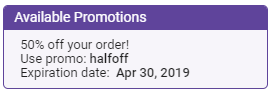
- Promotion Description: This appears to the client in the Available Promotions section of eGift. Describe the promotion succinctly. See below for an example of how we set up a 50% off promotion. The description we entered is 50% off your order! Notice that our promotion code also incorporates the theme of the promotion.
- Limit number of times a client can use the promotion?: Enable this option and configure the sub-option to define the number of times a client can apply the promotion in a single transaction. If this option is not enabled, there is no limit to how many times a client can apply the promotion in a single transaction. This option is not available for BOGO promotions that are based on Amount and that offer a Free discount.
- Must purchase __ in a single transaction to receive promotion (Specific Amount Off and Percent Off only): The client must have this many gift cards in the shopping cart to be eligible to apply the promotion.
- This is a silent promotion that will not be shown to the client: If enabled, this promotion will not appear to the client under Available Promotions. It will not be advertised anywhere on the eGift website. To redeem a silent promotion, the client must be made aware of the promotion code through a channel other than eGift (for example, a marketing communication).
- Waive any shipping / processing fee that is applied per gift card(s) (Buy One/Get One only): When enabled, any shipping or processing fees that would be applied to the transaction will be waived when this promotion is being used.