Exporting or Printing an Inventory Transfer
To export an Inventory Transfer list
Exporting saves a .csv file with the following details: Date Transferred, Inventory Transfer #, Inventory Transfer Name, Transfer From, Transfer To, Transfer From Status, Transfer To Status, Total Tax, Total Shipping/Handling, Item/Barcode, Inventory Type, Transfer QTY, Unit Value, Total Value
There are a few ways to achieve an export:
- Select Export List from the Inventory Transfers Search screen to export details on every transfer currently displayed in the results list.

- Select Export from the Search results to export details on only that transfer.

- Select Export from within the record to export details on the transfer.
To print labels for received items
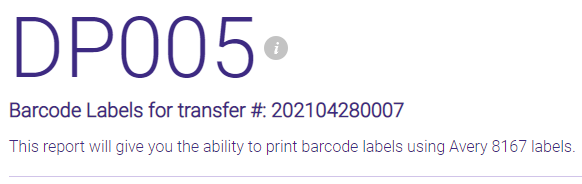
After a location has received a transfer, they can use the DP005 to print labels for the received items.
Note: Only a location can perform the following steps, as the DP005 is not available in Central Office.
- After you receive a transfer, the Print Labels for Received Items button appears.

- Selecting this button brings you to the DP005 report setup screen, with the report already configured to print labels for that specific transfer.
- Select Run report to generate labels for the products in the Inventory Transfer.