Activating a New Location
How do I add a new location?
To begin the process of creating a new location in Meevo, contact your sales representative.
How does a newly onboarded location inherit data?
Newly onboarded locations will inherit all data items that are available to locations, and will also inherit the state of that item (active or inactive).
To activate a new location
When they are first on-boarded, new locations are in a Pending state until you save this form.
- To get to the Location Maintenance screen, type locations into the Convobar, or go to Meevo > Management > Location.
- Search for and select the new location.
Tip: The Subscription Status will be in a Pending state, and the System Start / Install column will be blank.
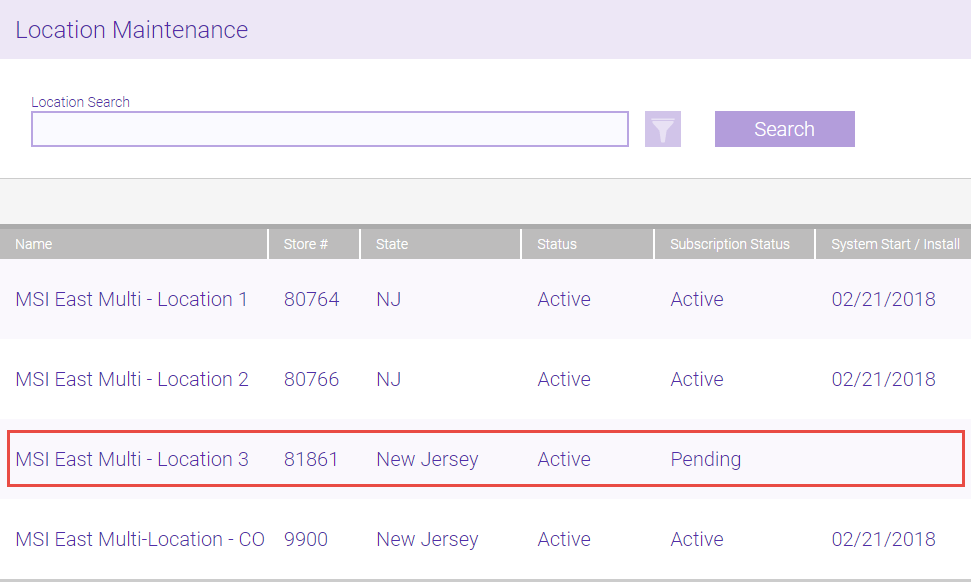
- Select Edit.
- Verify your store's Display Name, Store #, zip code, Phone, and Email. If necessary, make any adjustments.
- Subscription Status: This field will be automatically updated to Active shortly after saving the form.
- System start/installation date: This determines when the new location will be fully available (Active) in CO.
- Include All Discounts / Gift Card Types / Visit Note Types / Referral Types: What you select here determines the CO-created data items that will be pushed down to this location.
- Market Pricing: Determines pricing according to what is set up in the Market Pricing feature. This feature must be purchased separately from Meevo.
- When finished, select Save.
- Go back to the Location search screen and verify that your location System Start / Install Date is the date you selected in the Location form. Note that the Subscription Status may take up to an hour to update to Active.