Scheduling a Report
How many reports can I schedule?
You can create twice as many Scheduled Reports as you have active users. So if you have 20 active users in Meevo, you can create up to 40 Scheduled Reports. Note only one report can be scheduled at a time when configuring a Scheduled Report.
When are scheduled reports delivered and how long do they remain available?
Scheduled reports are delivered as soon as they are generated. Report Scheduler is not affected by Meevo Blackout Times.
Reports remain accessible for three months after they are generated. After that, they expire, and their associated link becomes invalid.
From which email address does Meevo send these notifications?
When emailing a report, Meevo uses the From email address you configured in Notification Settings. If the person receiving the email selects Reply, the Reply to address in Notification Settings is used.
Do I need to enable certain notifications in order to deliver scheduled reports?
To send Report Scheduler links in email and text messages, you'll need to enable Text and Email Notifications in Notification Settings.
Can I send the report to anyone?
Yes! You can send reports to any of your Meevo employees/users, as well as any custom email addresses or mobile numbers entered while scheduling the report.
Report Scheduler bypasses Meevo security, so employees/users who normally don't have access to a report (or who have access to view only their own data) will be able to see the report and all employee data if the report is sent to them through Report Scheduler.
To schedule a report
- To get to the Report Scheduler, type reportscheduler into the Convobar, or go to Meevo > Management > Report Scheduler.
- On the Report Scheduler Search screen, select Add New.
- Select a report category from the Report Type drop-down, and then select a report.
- After selecting the report, you can define the report's parameters in the top section of the screen. For guidance on setting up a particular report, see the Reports section of this Help.
Important: Most Meevo reports offer multi-selectors, which are checkboxes that list individual items when deselected (for example, the All Drawers selector in the MR080). To account for any future data items that may be created (for example, a new Front Desk drawer), make sure to enable the top-level checkbox instead of the sub-option radial button. This ensures that the scheduled report will capture any new data (Drawers in this example) created in the future.

- Under Delivery Options, enter a Schedule Name. This name will be included in the subject line of the email notifications as well as in the text message. The name of the report must be unique across all locations, so we recommend using a naming convention that includes the location name, such as Suspended Members - MSI East.
- Report Format: The report will be generated and delivered in the format you choose from this list.
- Report will be generated: Select Daily, Weekly, or Monthly.
- Day of Month: Select to reveal the Day of Month option, where you decide which day of the month the block will occur.
- If you selected Daily, there are no further configurations for delivery frequency. Daily reports that are not accessed for 2 weeks are deactivated and generated reports become inaccessible.
- If you selected Weekly, choose one day from the day picker to run the report. Weekly reports that are not accessed for 4 weeks are deactivated and generated reports become inaccessible.
- If you selected Monthly, choose how frequently to run the report. Monthly reports that are not accessed for 3 months are deactivated and generated reports become inaccessible.
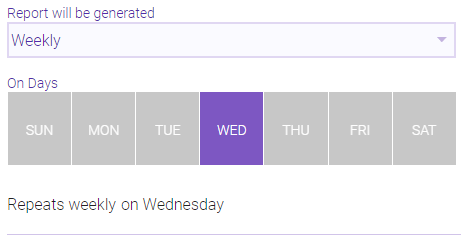
Day of month:
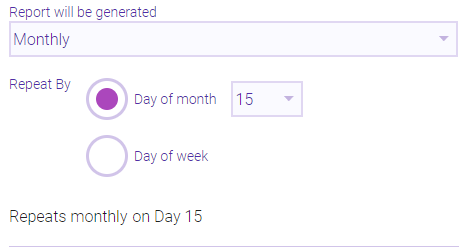
Day of week:
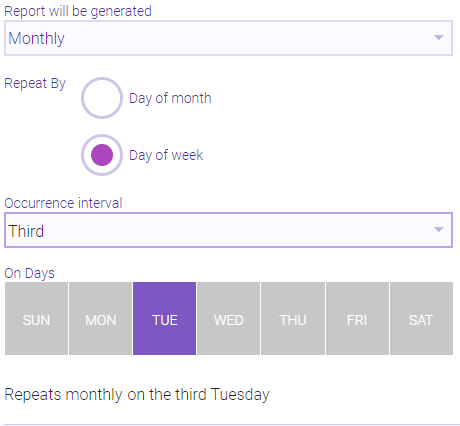
- Report Runs At: Select a time frame that the report will run. While the report is likely to be generated within the specified time interval, due to a number of variables (such as reports that are already in the queue), there is a possibility that the report will be delivered later than the selected time range. Links to the report are always delivered shortly after the report is finished generating.
- Require security code to view report: When this option is enabled, the recipients will be unable to access the report until they each enter a unique, one-time alphanumeric PIN. This PIN is randomly and automatically generated when the recipient selects the link in the notification. See Viewing Delivered Reports for more details.
- Deliver Report To: Select which employees and users will receive links to the scheduled report. There are no security limitations on this list; all employees and users appear here. Remember, it is up to the recipient of the report to keep the information private.
- Custom Delivery Options: To add recipients who are not in your list of Meevo users and employees, enter a name, then an Email Address and/or SMS Number. Select Add Address to add the recipient, and repeat as many times as needed.