Contingency Planning for Loss of Connectivity or Power
A business contingency plan is a course of action your organization will take if an unexpected event or situation occurs. Contingency plans are often created to account for major catastrophic events that would bring most business operations to a halt (think a hurricane or a fire). While planning for these disasters is certainly important, there are other, less dramatic situations that you are more likely to run into:
- Loss of Network Connectivity: Meevo runs on the cloud, so a consistent internet connection is needed to use the application, complete transactions (if you are using the integrated register), and communicate with clients and employees through Meevo. Your network suddenly going down can create chaos, as you’ll not only have issues accessing Meevo, but your hardware devices will lose connectivity as well. If you aren’t prepared for such a scenario, it can potentially end your business day.
- Loss of Device Connectivity: Occasionally, your card processing device may lose connectivity with your processor, despite having a stable internet connection. Meevo offers ways to continue completing transactions, even if card readers are down.
- Loss of Power: An unexpected power outage doesn’t necessarily have to end your workday. Having a plan in place in the event of power loss is an operational necessity and can be the difference between continuing to service clients and ending the day early.
Luckily, there are proactive steps you can take in Meevo to minimize disruption should one or more of these events take place. We strongly recommend putting all these steps in place. By preparing Meevo as described in the sections below, you give your business its best chance at being able to continue with the workday.
Note: These contingency preparations and plans assume that if your network or power go out, you will be able to connect to the internet using a mobile device’s cellular data.
Prep Step 1: Enable Hosted Page
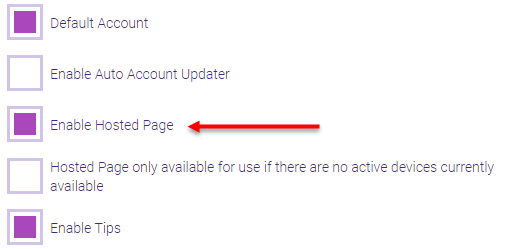
If you are using Worldpay or CardConnect, make sure you enable the Hosted Page on your default Merchant Account (from Register > Merchant Accounts). The Hosted Page allows you to process transactions directly in the browser if your card reader is down (for example, due to loss of internet or an anomalous connectivity issue with your card processor). The Hosted Page is essentially a "virtual terminal," so Hosted Page will be a selectable option in most places that Meevo asks you to select a terminal: Drawer definition, client profile's Credit Card tab, the register, etc.
Prep Step 2: Encourage Clients to Place Cards on File
Client cards on file make processing transactions much faster, as you can simply select the saved card as a Payment Type instead of manually typing the card data into the Hosted Page. Cards on file can be added from the client profile’s Credit Card tab. If you do not have the ability to add cards on file, reach out to your processor (Merchant Account provider) to discuss your plan options.
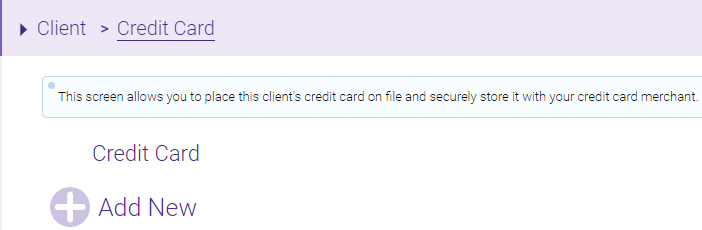
Note: Placing cards on file can have an additional fee or be considered “card not present,” so the cost may be slightly higher than a card present transaction.
Prep Step 3: Become Acquainted with Meevo's Self-Pay Feature
Self-Pay allows a client to pay a bill remotely, via a website, at a later time. Self-Pay is an available Payment Type in the register as long as:
- Your default Merchant Account supports Hosted Page and card tokenization (allows cards on file).
- Enable credit card processing is on in Business Information.
- Notifications are enabled.
After selecting Pay Now, choose Self-Pay as the Payment Type and decide whether to send the client an email, text message, or both. Regardless of which you choose, the notification that goes to a client will include a link to a web page, which the client can select to pay the bill and view transaction details. It is not necessary for clients to be opted-in to receive Self-Pay emails or text messages.
Prep Step 4: Configure Receipt Printing Options
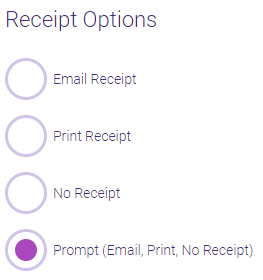
From a Drawer’s Receipt tab, make sure Receipt Options are set to Prompt. This ensures you are not relying on the connectivity of your receipt printer to provide the client a receipt, as you can select the Email option if device connectivity is down.
Prep Step 5: Create a Hardware List
Create a list of all hardware and their locations, and include passwords for routers and other password-protected devices. If you set up POS Stations, make sure those stations and their accompanying hardware are detailed in this list as well.
Prep Step 6: Bookmark Important Sites on Mobile Devices
We recommend bookmarking important websites so that you can easily and quickly access them from a mobile device. At a minimum, you should bookmark:
- A local website that calls out power or internet outages. These are usually offered by the utility company that supplies your power or the ISP that supplies your internet.
- Your Meevo business page. People often forget their specific business URL, so be sure to bookmark it on your mobile devices!
Prep Step 7: Join the Facebook Meevo User Community
We recommend joining our Meevo User Community on Facebook, where you can quickly get information and help from Millennium employees and fellow industry colleagues. If you are having internet issues, you can check the User Community on Facebook to see if others are experiencing the same thing.