Advanced OPM: Brand vs Location Page Posts
Brand page posting allows you to publish content from your brand’s main Facebook or Instagram page (the “parent page”) instead of from individual location pages (or “child pages”). For example, a business might have a main “Brand” page alongside location-specific pages like “Brand LA” or “Brand NYC.”
Creating a brand page post follows nearly the same process as a location page post. In the Create a Post modal, you’ll still add your content and select your publishers as usual. The key difference is that instead of selecting a Location entity, you’ll select the Brand entity to post from the main brand page.
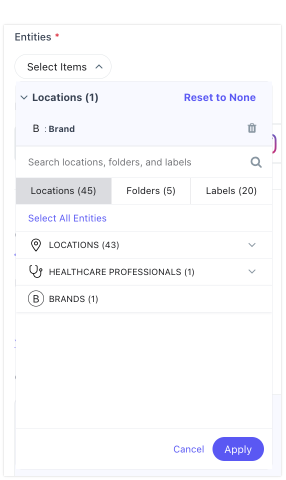
To create a brand entity
- Enable the Brand entity type.
- The Brand entity type is a built-in entity type used to represent the company and/or the company’s various lines of business. Ensure this entity type is enabled by navigating to Knowledge Graph > Configuration > Entity Types.
- For steps on enabling additional entity types, see the Yext Help article Enable Entity Types.
- Add a Brand entity.
- You can add Brand entities from Knowledge Graph > Entities by selecting the +Add Data button above the table of results. Only the Name field is required to create a brand entity.
- If you already have a brand entity set up (e.g. for brand-page review monitoring), you can use the same entity.
- Assign Social package to your brand entities. See the Yext Help article Assign Licenses to learn more.
- Configure the Brand entity for Social posting. Once the entity is created, navigate to the entity edit page and fill out the required information:
- Click on the Linked Accounts field and select the relevant linked account. Then click Save.
- Click on the Facebook Parent Page ID field and enter the Parent Page ID.
- You should now be able to create posts for your brand entities from the Calendar. Once you create a post (brand page or location page), the Instagram Page ID will populate on the brand entity. Even without the Instagram Page ID populated, you should be able to publish posts to your Instagram page.
- Please ensure that the Instagram page you are trying to post to is linked to your Facebook Parent page within Meta. You can follow this guide to link your Instagram page to your Facebook Page.
- Ensure your Facebook and Instagram brand accounts are linked together if you run into errors.
- Ensure the linked account added to the brand entity is the one that actually manages the account in Facebook.
- Your Instagram account must be a Business account in order to create posts from Yext.
Locating your Facebook Parent Page ID
The Facebook Parent Page ID can be found in your Facebook account:
- Click the brand name in the left navigation.
- On the Manage Page screen, select Meta Business Suite in the left navigation.
- From the Meta Business Suite screen, select Settings in the bottom-left corner.
- Click your profile from the list; the Page ID will be in the summary