Competitive Intelligence: Search Tracker
Search Tracker is a tool that runs a series of searches based on the keywords that you've entered, measuring how frequently your business appears in knowledge cards, local packs, and organic results. The resulting data allows you to gauge how likely a customer is to choose your business in search.
To set up Search Tracker
- Click Knowledge Graph in the navigation bar.
- Click Entities and select your location To set up Search Tracker for multiple locations (if applicable), select the checkboxes next to the desired entities, click More Actions, and select Edit.
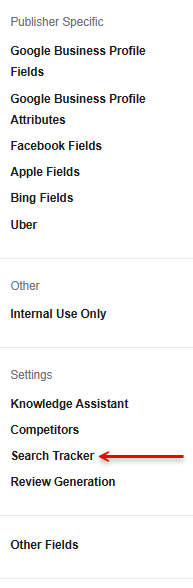
- Click Search Tracker in the left sidebar.
- Fill out the following fields and click Save after each update:
- Search Tracker Enabled: Select Yes from the drop-down.
- Search Tracker Frequency: Select how often you would like the Search Tracker to perform searches.
- Location Keywords: Select the checkboxes next to Name, Primary Category, and Secondary Category to include the business name and categories in searches.
- Custom Keywords: Add up to five additional keywords to include in searches. Enter one keyword per text box.
- Query Templates: Select up to four query templates that you would like applied in searches. You must select at least three templates.
- Alternate Names (Optional): Add up to three alternate names that are used for your brand, or any common misspellings.
- Alternate Websites (Optional): Add up to three alternate website domains that you use for your brand.
- Tracking Sites: Select the search engines where you would like to track your performance on.
- To confirm that the Search Tracker is set up correctly, click Analytics in the navigation bar and click Search Tracker.
- Click Search Tracking Status. Any fields that still need to be configured will be written in red.
To set up competitors
The Competitive Intelligence feature allows you to add up to five competitors of your choice to compare average review ratings, as well as compare presence in search by setting up the Search Tracker.
To add competitors:
- Click Knowledge Graph in the navigation bar and click Entities.and select your location.
- Click Competitors.
- Enter the business name and main website domain for a competitor that you’d like to track your performance against.
- Click + Add a new competitor to add up to four more competitors.
- Click Save.