CODE040: Payroll Totals by Location
The CODE040 displays payroll totals by employee across the selected locations for payroll periods that began during the date range.
Report definitions
Note the following details on the CODE040 report:
- The CODE040 references existing payroll calculations to determine totals across locations. This report does not make any new calculations based on the selected date range.
- If Multi-Location Payroll is on, payroll data from all locations is rolled up and displayed in the employee's Home Location row only. If Multi-Location Payroll is off, payroll data is displayed in each individual location's row.
- The report is sorted by employee, with the employee's Home Location always appearing on the first row.
- Overtime is represented by O.T. Hours, which is the sum of all overtime hours at the location during the date range.
Click here for details on each of the fields that appear in the CODE040.Click here for details on each of the fields that appear in the CODE040.
- Salary: The salary for the current payroll period. If the employee is set to:
- Salary and Commission: The higher of Salary per payroll OR earnings from Base hourly rate is added to the Service Commission.
- Salary or Commission: The higher of Salary per payroll OR earnings from Base hourly rate is compared against the Service Commission. Whichever is higher will be displayed.
- Commission Only: The report displays zero, as there is no salary to report.
- Hours: The total number of Actual Hours worked, before overtime.
- O.T. Hours: The total overtime hours worked in the date range.
- Regular Wage: Total wages or salary earned from pre-OT hours.
- O.T. Wage: Total wages earned from Overtime hours.
- Total Wage: The total wage that the employee earned, calculated as (Regular Wage + OT Wage).
- Total Srv. Hours: Number of service hours worked, based on the start and end time of the appointments. If no appointment was booked, Meevo uses employee-specific timing for that service. If no employee-specific timing exists, then Meevo uses the service definition step timing. Clean Up steps do not count towards this metric, nor do services that were cancelled or no-showed.
- # Srv. Performed: The number of services that were performed.
- (Services) Sales: Total service sales, minus refunds.
- (Services) Deduction: Total deductions from service sales, accounting for refunds. Booth Rental Fee deductions are excluded from this calculation, as they appear elsewhere in the report.
- Ticket Charge: Total Per Ticket deductions.
- (Services) Comm: Total service commission earned based on employee commission scales and employee/service commission overrides.
- (Retail) Sales: Total of retail sales, accounting for refunds.
- (Retail) Comm: Total retail commission earned based on employee commission scales.
- Retail to Service: (Retail Sales / Service Sales) x 100
- PKG Sales: Total of package sales, accounting for refunds.
- PKG Comm.: Total package commission earned based on employee commission scales and commission overrides.
- Mem Sales: Total of membership sales, accounting for refunds.
- Mem. Comm.: Total membership commission earned based on employee commission scales and commission overrides.
- Booth Rental Fee: Total amount owed by that employee on booth renter fees (per payroll period) as defined in the employee's profile > Deductions tab.
- Tips: Total amount earned on tips, including Service Charges that are configured as Employee Tip. This appears if Display Tips was selected in report setup.
- Total (far right column): Total Wage + Commission columns + Retail To Service + Tips - Booth Rental Fee
- Total for Date Range (bottom row): The grand total of each column.
Setting up the CODE040 report
- Type CODE040 in the Convobar, or go to Meevo > Reports > Payroll, and then select the CODE040 report.
- Select a Business Type: If you've set up Business Types, select one to select from those locations, or select All Business Types to select from all locations.
- All Locations: Select All Locations to run the report for all locations of the selected Business Type. Otherwise, deselect the option and use the list to select the locations. Note that the list of locations is limited to the locations you can access, either through security or Business Types.
- Use the date pickers to specify a date range. The report will pull in payrolls whose Start Date falls within the date range selected here. For reference, you can select View Periods to see your payroll period start and end dates.
- To run a report for a specific date range, select Custom and specify the Start Date and End Date for the report.
- Otherwise, select a predefined date or range (Yesterday, This Week, Last Week, etc.).
-
All Employees: Enable this checkbox to run the report for all employees within the date range. This includes active, inactive (including terminated), and deleted employees. Or, to run the report for specific employees, deselect the checkbox and use the drop-down to select employees or Employee Categories. You can show or hide inactive employees in this list, but deleted employees will never appear here. Note the All Employees "bubble" in the Employee list selects all employees in that list; it is not the equivalent of selecting the All Employees checkbox.
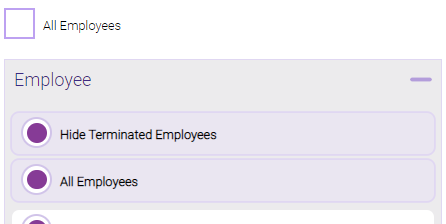
Note: Selecting All Employees will also return any data tied to the House employee.
- Identify Employees By: This determines how employees appear in the report: by Employee Name or Employee Number.
- Display Employees: Select Ascending or Descending to change the sort order of employees in the output.
- Display Tips: Includes tip data in the report, including Service Charges that are configured as Employee Tip.
Running the report
- When you are ready to generate the report, select a Report Format beside the Run Report button.

- Here is a rundown of each format type:
- PDF: Each time you select Run Report with PDF selected, Meevo opens a separate browser tab that displays the PDF'ed report. Meevo remains on the setup page, so you can quickly jump back over to Meevo to run more date ranges or other reports. Each PDF report you run will open its own browser tab, so you can easily review and compare reports by simply jumping between browser tabs.
Note for viewing on iOS: If viewing a PDF on a mobile device running iOS, swipe from left to right on the screen to return to Meevo. - HTML: This is our original legacy format, which opens the report within Meevo. All of the functionality within that report is still there and available via the toolbar.

- XLSX: Each time you select Run Report, your browser auto-downloads the report in .xlsx format. Select the downloaded file in the browser footer to open the spreadsheet.
- PDF: Each time you select Run Report with PDF selected, Meevo opens a separate browser tab that displays the PDF'ed report. Meevo remains on the setup page, so you can quickly jump back over to Meevo to run more date ranges or other reports. Each PDF report you run will open its own browser tab, so you can easily review and compare reports by simply jumping between browser tabs.
- Select Run Report to generate the report in your chosen format. Depending on the type of report and criteria you entered, this process may take a few minutes.