Self Check-In Kiosk Client Experience
- On the Self Check-In Kiosk home screen, the client can enter their phone number or email address to begin the check-in process.
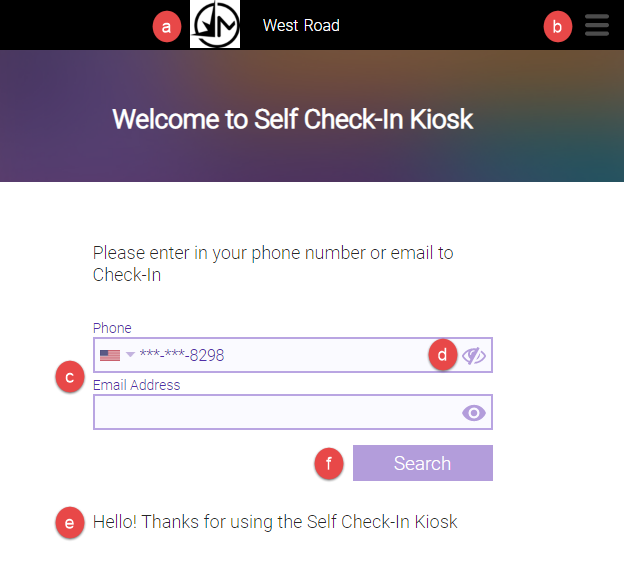
- This is the Business Logo that was uploaded in Self Check-In Kiosk Settings.
- Selecting the hamburger menu will reveal the logout window, where an employee will need to enter their credentials in order to log out of the Self Check-In Kiosk.
- These fields are where the client enters their phone number or email address.
- For privacy, the client can select the "mask" icon
 to replace part of the client's phone number or email with asterisks.
 - This is the Greeting Message that is defined in Self Check-In Kiosk Settings.
- After entering their info, the client selects Search to advance to the next screen.
- The client is presented with the day's appointments and a Check In button.
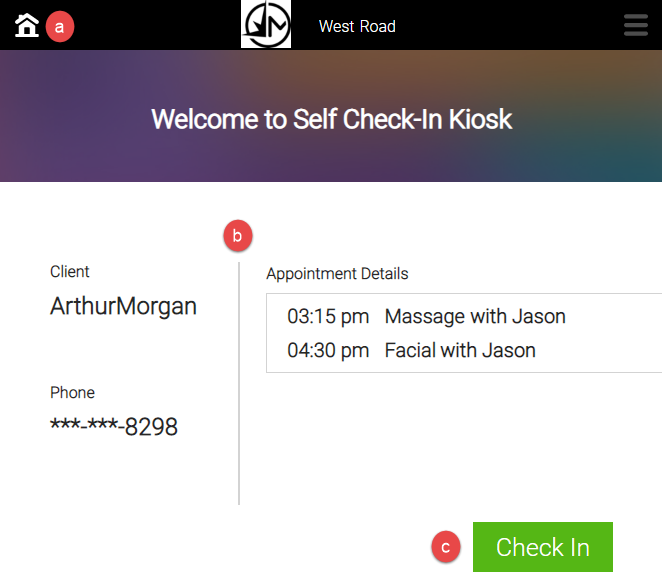
- Selecting the Home icon will present a window to the client, asking if they're sure that they want to start over. Selecting Yes in this window will bring the client back to the home screen.
- These are the client and appointment details. If the client has multiple appointments booked for the day, all are displayed here.
- The client selects Check In to check in for the first appointment or for all scheduled appointments, depending on what's configured in Self Check-In Kiosk Settings.
- If service add-ons have been configured for any of the scheduled services, the client is presented with those add-ons and can select them if desired.
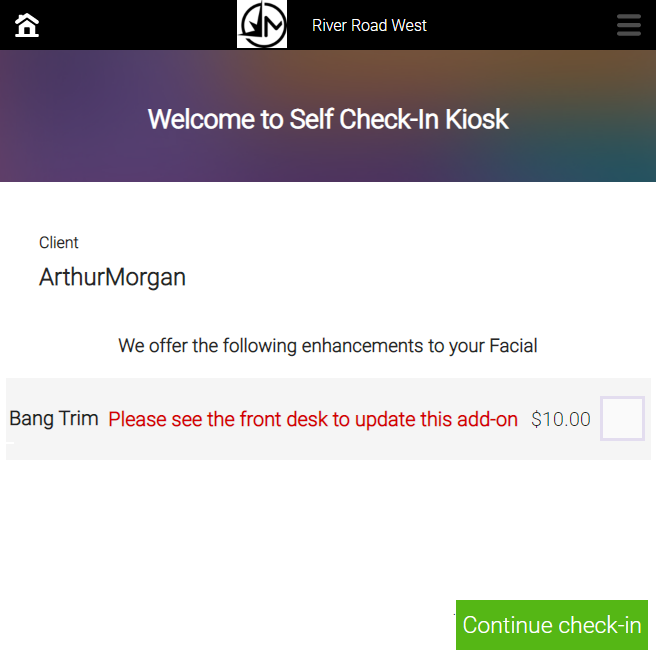
- Previously purchased add-ons appear in their own section.
- To prevent required add-ons from being removed, their checkboxes are disabled.
- The note Please see the front desk to update this add-on appears beside any add-on that is required, increases appointment duration, or requires equipment.
- Finally, the client is taken to the confirmation screen. The confirmation screen will remain open for the duration configured in the Auto Dismiss Messages in __ seconds option in Self Check-In Kiosk Settings.
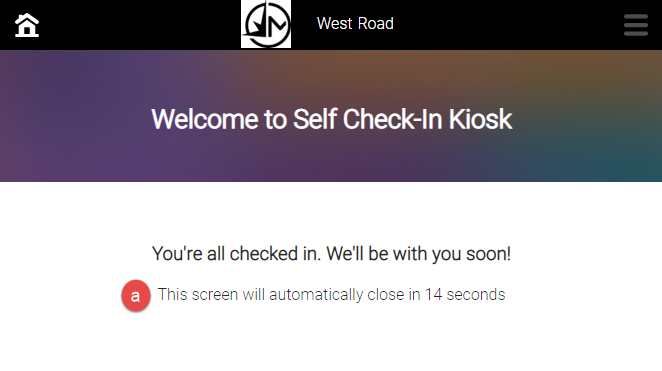
- The Self Check-in Kiosk resets on the home screen, ready for the next client to check in.