Appointment Book Tips & Tricks
Master the Convobar®
The integration between the Convobar and the Appointment Book is one of the most powerful features in Meevo. Using the Convobar to locate appointment openings will make the booking process much quicker, especially for businesses with a nearly full Appointment Book. Go here for details on Convobar commands.

Learn your service codes
To use the Convobar to locate appointment openings, you'll need to know your service codes. The Convobar recognizes service codes only, not service display names. If your business offers many services, it may be helpful to print out a list of services and their related service codes so that employees have quick access to a reference document.
Knowing your service codes is also helpful when looking up services (in the Appointment Editor, for example). Rather than typing out the entire service name, you can type the short code and immediately pull up the correct service.
Print your Appointment Book
You can print the current view in the Appointment Book! For it to print properly, make sure you are including background graphics (an option in the print setup window). This option name varies by browser, so see below according to the browser you're using with Meevo.
Note: Printing your Appointment Book from the browser relies on the browser's technology, so we cannot guarantee print functionality immediately after a browser update.
- When in the Appointment Book on your desired view, select Print from the browser menu, or press Ctrl+P on the keyboard.
- In the Print dialog, select More settings, and enable Background graphics.
- The print preview on the right should now display properly, and is ready to print.
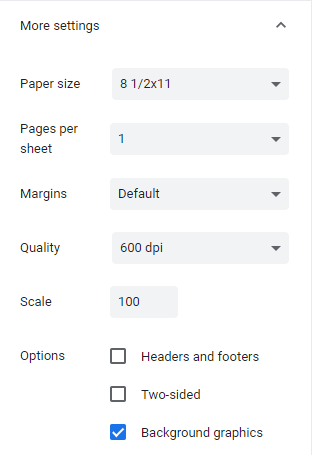
- When in the Appointment Book on your desired view, select Print from the browser menu.
- In the Print dialog, select Page Setup, and enable Print Background (colors & images).
- The print preview on the right should now display properly, and is ready to print.
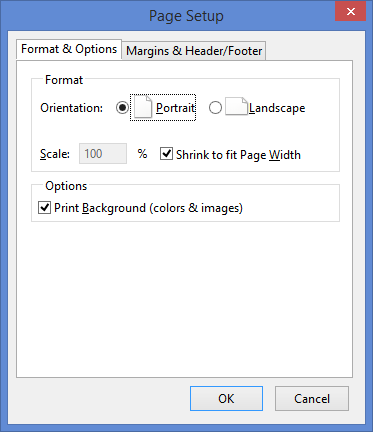
Safari (for Macs)Safari (for Macs)
- When in the Appointment Book on your desired view, select Print from the File menu, or press Command+p on the keyboard.
- In the print dialog, enable Print backgrounds.
- Select OK, and then print the Appointment Book from the browser.
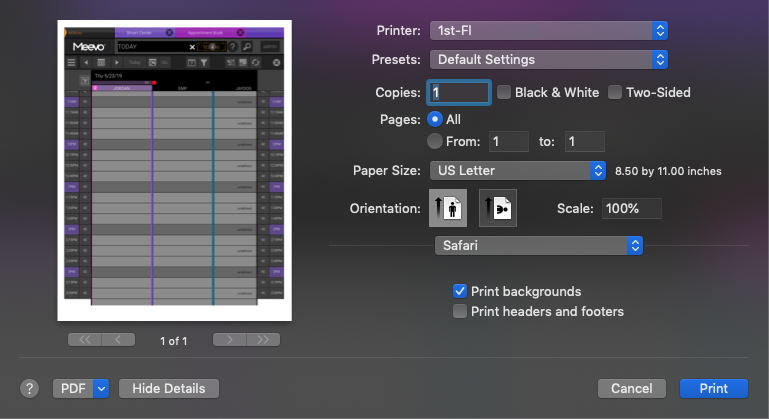
Use keyboard shortcuts
When booking an appointment through the Appointment Editor, press Enter on the keyboard to advance to the next required field. See General Keyboard Shortcuts for more details, or press Shift + ? on the keyboard to view a pop-up window of all keyboard shortcuts relevant to your current screen in Meevo.
Change the zoom to view more or less appointments
You can view more/less appointments on the Appointment Book by changing the zoom view. The default zoom is 100%, but changing the zoom to a smaller number actually displays more appointments on-screen. See Using the Appointment Book Toolbar for more details.
Set the default view of the Appointment Book
Some businesses schedule primarily in the Appointment Book Resource View rather than the Employee View. If that sounds like your business, you can set the Appointment Book to open up on the Resource View each time via the Default Appointment Book View setting in Appointment Business Preferences.