Booking a Wait List Appointment Request
There are multiple ways to book a Wait List appointment request. It is recommended that you use the scan function to quickly find openings.
For details on how Wait List notifications work and other Wait List information, see About the Wait List.
To book using the Automatic Scan in Wait List
Every 5 minutes, Meevo checks the Appointment Book to see if any appointments or employee blocks have changed (moved, deleted, added a service, changed the Block Type, etc.). If there have been changes, Meevo then scans the Wait List, in order of priority, and attempts to find blocks of time in the Appointment Book that meet the criteria of the wait-listed appointments. When a match is found, a Pending appointment is created in the Appointment Book.
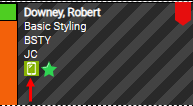
Note: If the green phone icon appears on a pending appointment as shown above, this means the client needs to be called. This icon appears if the client is not opted-in for text messages or if Notify via Text was not selected on their Wait List entry.
To book using a manual scan in Wait List
- Locate the request in the Wait List.
- Select Scan in the row of the request you wish to book.

- Meevo performs a scan of the Appointment Book. After a few moments, the Wait List scan results table appears. The results table displays all available openings for the selected appointment request.
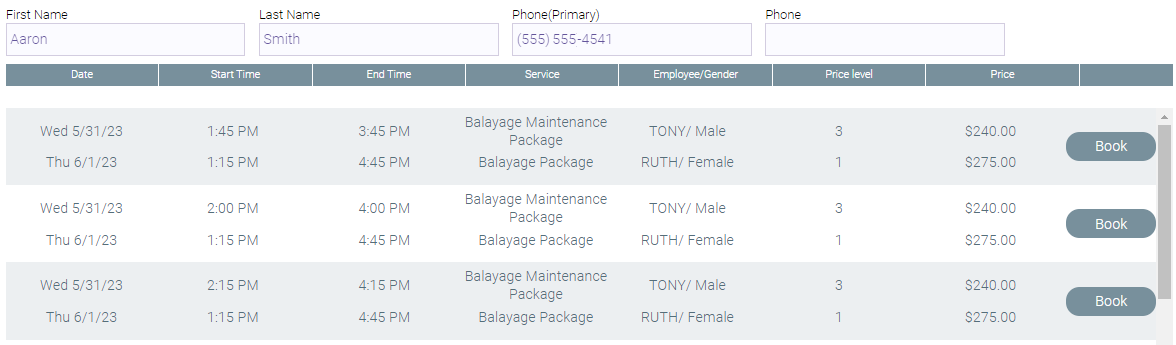
- Select Book in the row of the appointment you wish to create. The appointment is created in the Appointment Book, and you are returned to the main Wait List screen. In the Wait List, the client is removed.
- Open the Appointment Book and confirm that the appointment was created.
To view and manually booking pending appointments in Appointment Book
When Meevo uses automatic scan to locate an appointment opening, a Pending appointment is created in the Appointment Book. To manually book this Pending appointment:
- Open the Appointment Book.
- Select Switch to Employee View. If there are any pending appointments, __ Pending will appear in the upper-right corner of the Appointment Book.
- Select __ Pending. The Appointment Book displays all employee columns that contain a pending appointment.
- Select a pending appointment. The Smart Assistant displays.
- Select Book or Delete.
- Book: The appointment is booked and the client is removed from the Wait List.
- Delete: The pending appointment is removed and the client remains on the Wait List.