Checking Out a Client
At the conclusion of the appointment, change the status to Checked Out. This crosses out the appointment in the appointment book and automatically opens the Meevo register with the appointment details already populated in the Smart Receipt. If the appointment you are checking out is from a previous day, see Checking Out a Past Appointment.
Note: The following appointment details can be edited up to 14 days after an appointment is checked out: service steps and requested/redo/walk-in checkboxes.
Using Client Quick Find (recommended)Using Client Quick Find (recommended)
- Locate the client using Client Quick Find.
- In the Quick Find Menu, select Appointments to expose the drop-down.
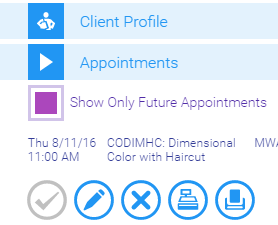
Note: Deselect Show Only Future Appointments to also view past appointments in this list.
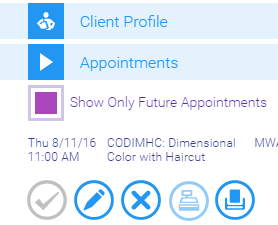
- Locate the appointment that the client has arrived for, and beneath it, select Checkout.

- The Checkout icon becomes gray, indicating that the client is checked-out.
- Selecting Check Out from the Smart Assistant launches the register.
- Click through the prompts to complete the check out.
Using the Appointment Book EditorUsing the Appointment Book Editor
- Access the Appointment Book.
- Select the appointment. The Smart Assistant displays.
- Select Check Out to launch the register.
