Copying Services and Appointments
To save time during the booking process, use the Copy function in Meevo if you are booking an appointment or block that is similar to an existing appointment or block.
The Copy function is best used to:
- Copy a service
- Copy an appointment that contains one service
- Copy a Standing Appointment or block
Note: If performing a copy + paste of an appointment, Meevo will attempt to keep the appointment in the original resource. If that resource is not available but another one is, Meevo will automatically reassign the appointment to the available resource.
- Locate the appointment in Appointment Book and select the appointment to display the Smart Assistant.
- Select Copy from the Smart Assistant. The appointment now appears in the Copy window on the right.

- Scroll the calendar to the new date and time.
- Select the appointment in the Copy window. The appointment is highlighted blue, indicating it's been selected.
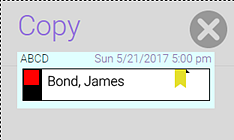
- To paste the appointment, select the new appointment block. Note that to copy an appointment that has multiple services, this copy process will need to be repeated for each service in the original appointment.
- As a best practice, verify the updated appointment details in the calendar before closing the Appointment Book.