Setting Up Booking Restrictions
From the Booking Restrictions tab in an employee's profile, you can limit how many services an employee can perform in a day.
Does the Appointment Book show me if an employee has booking restrictions?
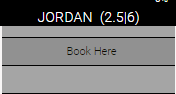
Restrictions that involve a duration of time (Can only perform __ per day and Can only perform __ in a row followed by __ break) are displayed in the employee's column header in Appointment Book (shown below). Other restrictions such as number of services do not have a visual indicator.
In the Appointment Book, the first number beside an employee's name is the number of hours in a row the employee can perform services before they must take a break. The second number indicates the total allowable service hours per day for this employee. Below, employee Jordan can perform services for two hours and 30 minutes straight before she must take a break, and she can perform up to 6 total services hours per day.
What happens if an employee exceeds their booking restrictions?
The employee can still be booked in the Appointment Book, but a warning message appears requiring you to confirm. Note Scan for Opening will not return an employee in the results if the employee has exceeded their booking restrictions.
To set up booking restrictions
- Locate and select the employee profile.
- Select the Booking Restrictions tab.
- You can configure some or all of the options below. Note Scan for Opening honors any configured setting on this screen.
- Can only perform ___ services per day: Limits the number of services the employee can perform in a workday. Maximum is 50 services. If this value is set to 0, Meevo automatically defaults this to mean 50.
- Can only perform ___ per day: Limits the total number of servicing time an employee can perform in a workday. Maximum is 8 hours. This does not include service add-ons or gap time.
- Can only perform ___ in a row followed by ___ break: Limits the number of consecutive minutes an employee can be booked before a break is required. This does not include service add-ons or gap time.
- Add an additional specific service restriction: You can limit any service added here to be performed a certain number of times per day.
- When finished, select Save.