Connecting Meevo to ADP Workforce Now
Important: The Meevo Connector is required for the ADP Workforce Now (WFN) Integration, but it can only be purchased after at least one payroll period is completed in WFN. If you cannot purchase the Meevo Connector in the ADP Marketplace for any reason, contact ADP for assistance.
To connect Meevo to WFN:
- Open the Settings screen in Meevo by typing wfn into the Convobar, or go to Meevo > Integrations > ADP WFN Integration.
- Select Edit.
Step 1: Decide how to connect to WFN
This is a New Connection
- Select this option if you are purchasing the Connector and setting up the WFN integration connection for the first time. If you are a multi-location looking to connect to an existing WFN integration, DO NOT proceed with these steps and instead go to Use an Existing Workforce Now Connector below.
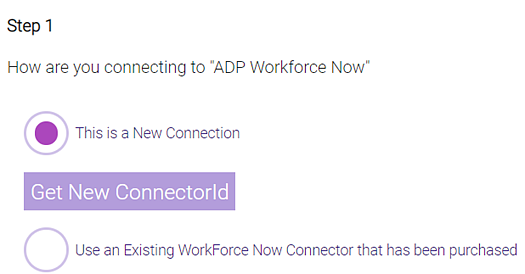
- Select Get New ConnectorId to generate your Connector ID. You will need this ID to connect Meevo and WFN during the Connector purchase process.
- Copy the Connector ID from Meevo to Notepad so that you can paste it when needed in the ADP Marketplace. The Connector ID is case-sensitive and must include the hyphens. If you are a multi-location business, other locations can connect to this WFN connection using this same Connector ID.
- The ADP Marketplace Subscription Status reads Inactive because you haven't purchased the Meevo Connector yet. You need to go to the ADP Marketplace to purchase the Meevo Connector and activate your subscription:
- Select ADP Marketplace to open the Meevo Connector for ADP Workforce Now page in the ADP Marketplace.

- Select Buy Now to begin the purchase process.
- After selecting Continue during the purchase process, you are brought to the Additional Information step. Paste your WFN ADP Connector ID here.
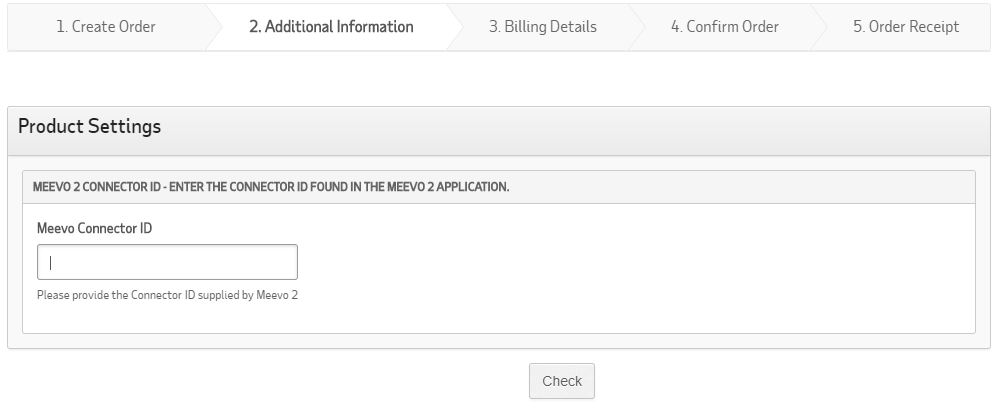
- Select Check to verify that the ID is valid, and then complete the purchase.
- Toggle back to the ADP Settings page in Meevo, and select Refresh Status. Under Step 1 on this page, the ADP Marketplace Subscription Status should now read Active.
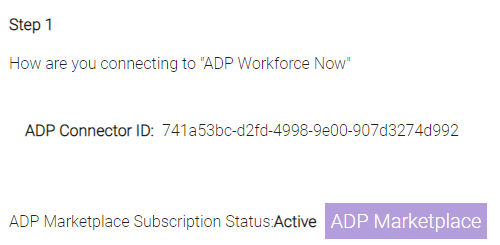
- Proceed to Step 2: Agree to ADP Consent Form.
Use an Existing Workforce Now Connector
- Select this option if you are a location adding yourself to an existing WFN connection. In this scenario, you must use the same Connector ID that the other connected locations used. DO NOT select Get New ConnectorId, as this will generate a new Connector ID and prevent you from being able to connect to an existing WFN connection. If this occurs, please contact Meevo Support for help on resetting your Connector ID.
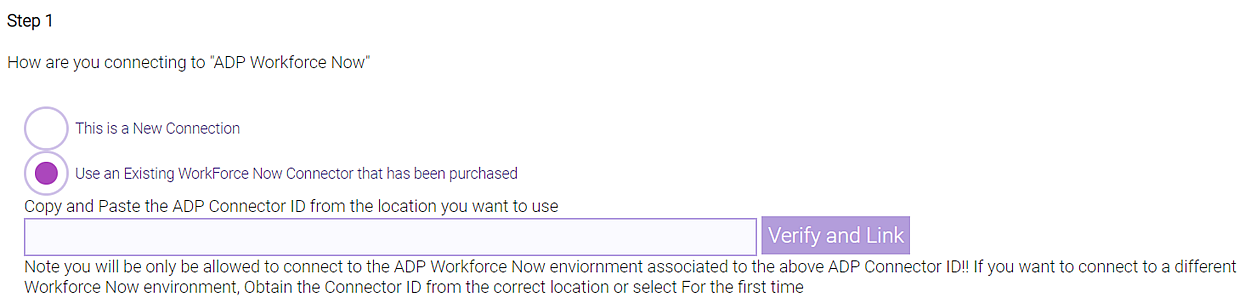
- Copy and paste the Connector ID into the field and select Verify and Link to create the connection.
- Select Refresh Status. Under Step 1 on this page, the ADP Marketplace Subscription Status should now read Active.
- Proceed to Step 2: Agree to ADP Consent Form.
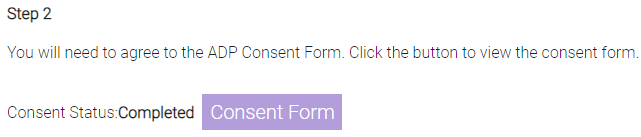
Step 2: Agree to ADP Consent Form
- Under Step 2, if the Consent Status reads Not Completed, you need to agree to the consent form. If you connected to an existing Workforce Now Connector, the Consent Form will automatically read Completed.
- If it is Not Completed, select Consent Form.
- After agreeing to the consent form, toggle back to the ADP Settings page in Meevo, and select Refresh Status. Under Step 2 on this page, the Consent Status should now read Completed.
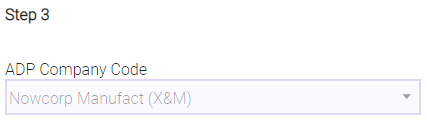
Step 3: Select Your ADP Company Code
Select your company code from this menu, which lists all company codes associated with the WFN platform you connected to. A company code can only be selected and used by one location at a time.
Step 4: Enable the WFN Integration
You must enable the WFN integration before you can map employees and earning codes.