Connecting Meevo to Wisely by ADP
Important: The Meevo Connector is required for the Wisely Integration. You can be purchase the Meevo Connector from the ADP Marketplace at any time.
To connect Meevo to Wisely:
- Open the Settings screen in Meevo by typing wisely into the Convobar, or go to Meevo > Integrations > ADP WISELY Integration.
- Select Edit.
Step 1: Decide how to connect to Wisely
For the first time
- Select this option if you will be purchasing the Connector and setting up the Wisely integration connection for the first time. If you are a multi-location looking to connect to an existing Wisely integration, DO NOT proceed with these steps and instead go to Another location already connects to the same Wisely that this location needs to connect to.
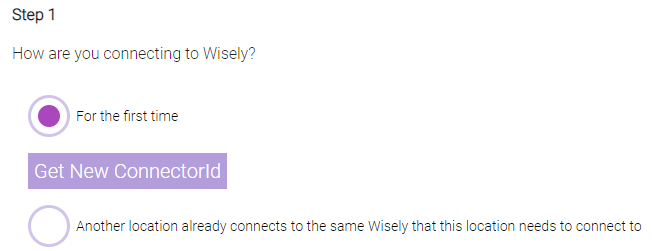
- Select Get New ConnectorId to generate your Connector ID. You will need this ID to connect Meevo and Wisely during the Connector purchase process.
- Copy the Connector ID from Meevo to Notepad so that you can paste it when needed in the ADP Marketplace. The Connector ID is case-sensitive and must include the hyphens. If you are a multi-location business, other locations can connect to this Wisely connection using this same Connector ID.
- The ADP Marketplace Subscription Status reads Inactive because you haven't purchased the Meevo Connector yet. You need to go to the ADP Marketplace to purchase the Meevo Connector and activate your subscription:
- Select ADP Marketplace to open the Meevo Connector for ADP Wisely page in the ADP Marketplace.

- Select Buy Now to begin the purchase process.
- Paste your Connector ID here when prompted and complete the purchase.
- Toggle back to the ADP Wisely Settings page in Meevo, and select Refresh Status. Under Step 1 on this page, the ADP Marketplace Subscription Status should now read Active.
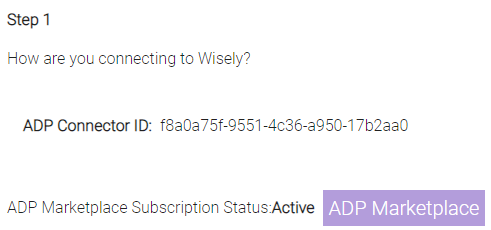
- Proceed to Step 2: Agree to ADP Consent Form.
Another location already connects to the same Wisely that this location needs to connect to
- Select this option if you adding your location to an existing Wisely connection. In this scenario, you must use the same Connector ID that the other connected locations are using. DO NOT select Get New ConnectorId, as this will generate a new Connector ID and prevent you from being able to connect to an existing WFN connection. If this occurs, please contact Meevo Support for help on resetting your Connector ID.
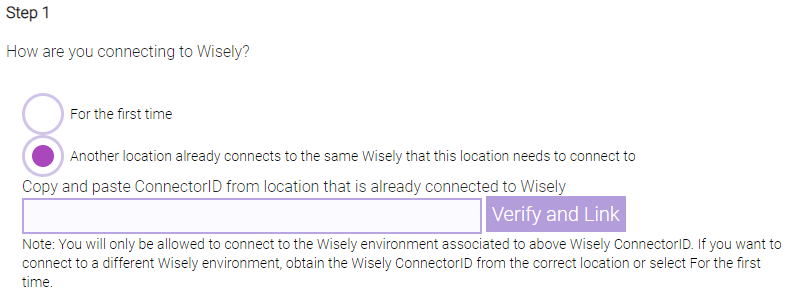
- Copy and paste the Connector ID into the field and select Verify and Link to create the connection.
- Select Refresh Status. Under Step 1 on this page, the ADP Marketplace Subscription Status should now read Active.
- Proceed to Step 2: Agree to ADP Consent Form.
Step 2: Agree to ADP Consent Form
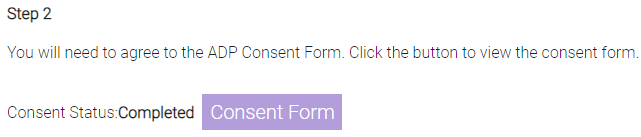
- Under Step 2, if the Consent Status reads Not Completed, you need to agree to the consent form. If you connected to an existing Connector, the Consent Form will automatically read Completed.
- If it is Not Completed, select Consent Form.
- After agreeing to the consent form, toggle back to the ADP Settings page in Meevo, and select Refresh Status. Under Step 2 on this page, the Consent Status should now read Completed.
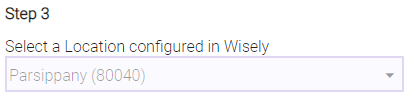
Step 3: Select a Location configured in Wisely
Select your location from this menu, which lists all locations associated with the Wisely account you connected to.
Note this field cannot be changed once a location is selected. If you've selected the wrong location and cannot change it, please call MSI Support for assistance.
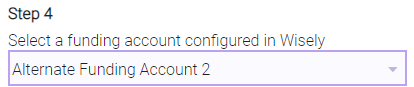
Step 4: Select a funding account configured in Wisely
This option lists all funding accounts that are associated with your Wisely account. The account selected here will be the source of employee tip payouts through Wisely.
Step 5: Enable the Wisely Integration
We recommend mapping employees before you enable the integration.