Submitting Payroll to RUN or WFN
Every time you submit a payroll period, the submitted payroll data appears in the Import section of RUN or WFN. There, you will get a view of the data that came in from Meevo alongside any values ADP may have already calculated for the same employee and earning code. By presenting these values side-by-side, you will be able to look at each calculation and decide which value to use in ADP payroll. No data is added to your payroll in ADP until you confirm the import in RUN/WFN.
Can I send any payroll period to ADP?
Only Current and Previous payroll periods can be sent to ADP.
Is payroll submission scheduled or real-time?
To ensure payroll data is only sent to ADP when desired, submitting a payroll period is always a real-time, manual action that is performed by selecting Submit to ADP via the Meevo payroll screen.
When should I submit payroll to ADP?
Submit your payroll to ADP at the end of each payroll period, after you review and approve of the Meevo payroll data.
Is it possible to submit the same payroll twice?
There is no limit to how many times you can submit the same payroll period; each submission will simply overwrite the last. The Meevo Payroll screen offers several ways to verify whether a period has already been sent, and extensive ADP logs are available for review on this screen as well.
Where do I go in RUN or WFN to see my imported payroll data?
In RUN, search for and select Time Sheet Import, or click the Time Sheet Import icon from the Home screen.
In WFN, search for Import and under Import, select Pay Data.
To submit a payroll to ADP
Important: To ensure data is synced without issues, make sure that there is a Pay Frequency set up in ADP for every payroll frequency you're sending from Meevo. So, if you set up two payroll frequencies in Meevo – bi-weekly for wages/service commission and monthly for retail commission, for example – you need two equivalent Pay Frequencies set up in ADP. A Meevo payroll that doesn't have an equivalent Pay Frequency in ADP will fail to send and display an "object" error.
- Locate and select the payroll period you wish to send to ADP.
- Select the red Submit to ADP button.

- Select Yes on the confirmation message to submit the data to RUN.
- Upon a successful submission:
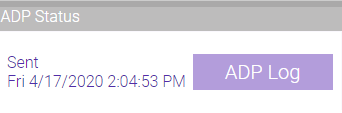
- The ADP Status on the payroll screen now reads Sent.

- The ADP Status column on the Payroll search screen now displays the date and time of the submission.
To view the submission history of a payroll
To view the submission history of a payroll, select ADP Log from the Payroll search screen or from within an individual payroll period's screen. This screen will also indicate which, if any, errors occurred during the submission.

Logging into ADP from Meevo
From the Payroll screen, select Login to ADP to launch your ADP integration login screen. Once logged into the ADP Marketplace, you can navigate to your purchased Connector and select it to launch Meevo.