Submitting Payroll to RUN
Every time you submit a payroll period, the submitted payroll data appears in the Time Sheet Import section of RUN. The Time Sheet Import section gives you a view of the data that came in from Meevo 2, alongside any values RUN may have already calculated for the same employee and earning code. By presenting these values side-by-side, you will be able to look at each calculation and decide which value to use. No data is added to your payroll in RUN until you either select Combine Payroll and Import or Accept Import Only within the Pay Data Approval screen in RUN.
To submit a payroll to ADP
Important: To ensure data is synced without issues, make sure that there is a Pay Frequency set up in RUN for every payroll frequency you're sending from Meevo 2. So, if you set up two payroll frequencies in Meevo 2 – bi-weekly for wages/service commission and monthly for retail commission, for example – you need two equivalent Pay Frequencies set up in RUN. A Meevo 2 payroll that doesn't have an equivalent Pay Frequency in RUN will fail to send and display an "object" error.
- Locate and select the payroll period you wish to send to RUN.
- Select the red Submit to ADP button.

- Select Yes on the confirmation message to submit the data to RUN.
- Upon a successful submission:
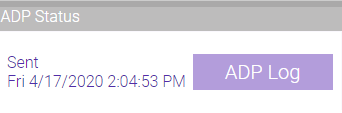
- The ADP Status on the payroll screen now reads Sent.

- The ADP Status column on the Payroll search screen now displays the date and time of the submission.
To view the submission history of a payroll
To view the submission history of a payroll, select ADP Log from the Payroll search screen or from within an individual payroll period's screen. This screen will also indicate which, if any, errors occurred during the submission.
