Granting Access to Meevo BI
Access to Meevo BI is granted through the Security tab of each individual employee's profile. By default, new and existing employees will not be able to log into Meevo BI unless they are assigned a security role to the location and to Meevo BI.
To grant a user access to Meevo BI
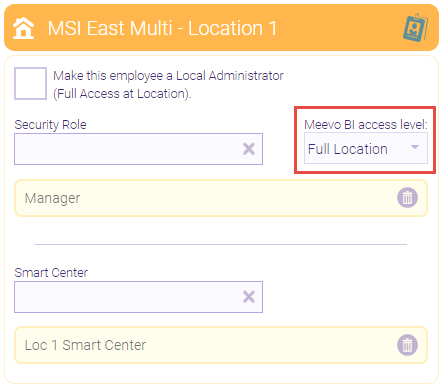
The Meevo BI access level drop-down below each location section determines the employee's level of access in Meevo BI.
Tip for multi-locations: If you are granting employees BI access in several locations, we recommend configuring Meevo BI access from the employee's profile in Central Office. This way, you can quickly grant Meevo BI access to several locations from one screen.
- Locate and select the Employee profile.
- Select the Security tab.
- Make sure the employee has security access to each desired location. This can be a Security Role or a Full Access at Location role.
- Meevo BI access is granted using the Meevo BI access level option below each desired location. Be sure to review Important details for Multi-Locations section below for more info on how security options affect Meevo BI access across locations.
Note: The Make this employee a Local Administrator (Full Access at Location) option does not affect an employee's Meevo BI access level, but it does count as a location-level security role.
- None: The employee cannot log into Meevo BI.
- Employee: The employee can log into Meevo BI for that location and view only their personal metrics.
- Full Location: The employee can log into Meevo BI for that location and view all metrics for all employees in that location.
- When finished, select Save.
Important details for Multi-Locations
- When at least one location in a tenant enables this Business Booster, permissioned users will be able to see aggregate data for All Locations. However, when drilling down into data, you will only be able to view data from individual locations that enabled Meevo BI.
- In Central Office, enabling Make this employee a Full Access User from the Security tab grants the employee Full Location permission to all locations.

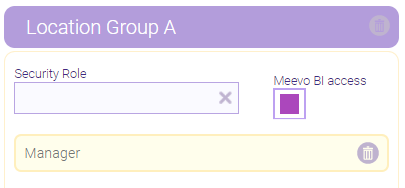
- The Meevo BI access checkbox in Central Office controls the availability of the All Locations view in Meevo BI. The All Locations view in Meevo BI displays totals for all locations the employee was granted Meevo BI access to. Employees who have BI access to several locations but no BI access to Central Office will be able to view each location's data individually, but not the aggregate totals across all locations.

- Enabling Meevo BI access for a Location Group grants the employee Full Location access to all locations in the Location Group. There is no access level drop-down for Location Groups; only Full Location access can be granted.