Resolving an Inventory Count Conflict
Meevo will alert you if a product's on-hand count changes while you are performing an inventory count (for example, if a product is sold in the register while an inventory count is open). You can commit a count even with an on-hand conflict. If you do, see Committed Inventory Counts with conflicts for details.
Saved Inventory Counts with conflicts
- If an on-hand amount changes for a product in a saved (but not yet committed) Inventory Count, then the next time you open the count, the product's row is highlighted red:

- Select the yellow exclamation point to view details as to the event that affected this product's on-hand. In the screenshot below, a transaction occurred that affects this product's on-hand count.
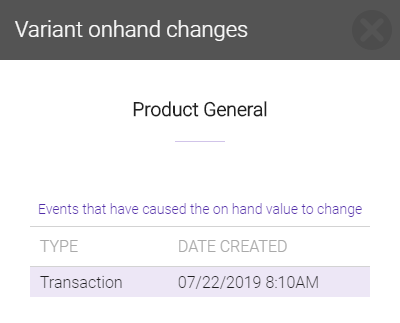
- Resolve the on-hand count discrepancy by re-counting the product in question:
- Use the slideout panel to search for the product again.
- When the product appears in the left pane, update the count accordingly.
- Select Save. This removes the red highlight from the product row.
- Meevo now considers the product's on-hand count to be accurate. Commit the Inventory Count as you normally would.
Committed Inventory Counts with conflicts
- There may be occasions where an on-hand count conflict arises, but the Inventory Count gets committed anyway. This can happen when an Inventory Count is created, counted, and committed without a "save" during the workflow. In such cases, Meevo displays the following message after you commit the count:
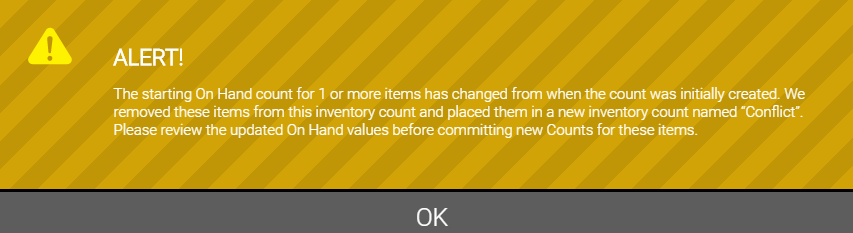
- Back on the Inventory Count search screen, you'll notice a new CONFLICT count was created.

- Open that Inventory Count to view the products in question.
- Resolve the on-hand count discrepancy by re-counting the product in question, or simply Commit the count as it is.
- After committing the count, Meevo now considers the product's on-hand count to be accurate.