Managing Inventory Returns
To get to Inventory Returns, type inventoryreturn into the Convobar, or go to Meevo > Inventory > Inventory Returns.
To add an inventory return
- On the Inventory Returns search form, select Add New.
- Distributors: Select the distributor of the products being returned. This will determine which products are available under Select Products.
- Enter a reference #: If you received a reference number from the distributor who will receive the return, enter it here for record keeping purposes.
- Select reason for return: The reason you select will appear in the MI105: Inventory Returns report.
- Select Retail, Shop Supply, or Misc. Supplies for the Product type. This will also determine which products are available under Select Products. If needed, select Include discontinued to view and select discontinued products.
Note: Shop Supply products appear with blue text in the Inventory Count, Inventory Returns, Purchase Orders, Stock Levels, and PO Receival screens.
- Click within Select Products to view the drop-down list, or begin typing to select a specific product. Select a product to return from the drop-down to the right of the Include discontinued option. The product is added below the options.
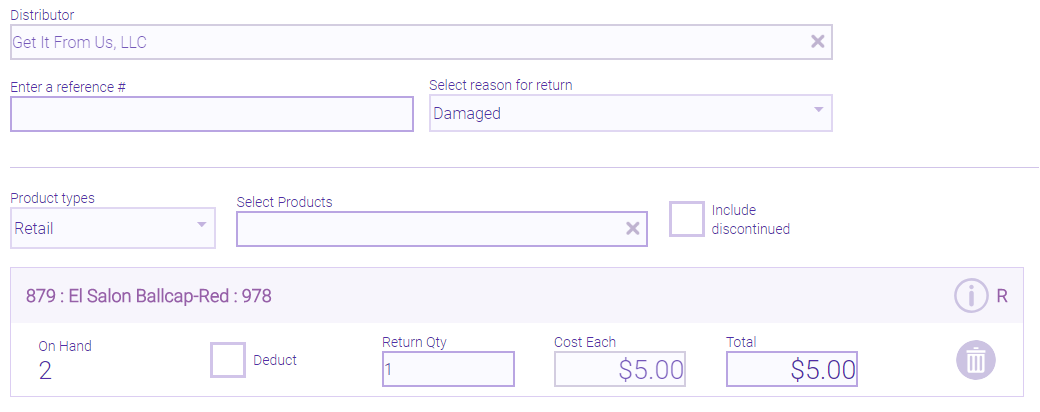
- If necessary, update the Return Qty, Cost Each, and Total.
- Deduct: This deducts the Return Qty from the On Hand count after you save. If you did not receive a purchase order but still wish to create a record of the return, only select Deduct if you are sure the listed On Hand amount is accurate.
- Repeat these steps for other products as needed.
- When finished, select Save.
To edit an Inventory Return
Note: If you edit an Inventory Return on the same day it was created, all fields are editable. If you edit an Inventory Return after its creation day, only the reference number and reason may be edited.
- Locate and select the Inventory Return.
- Select Edit.
- Make your changes.
- Select Save when finished.
To delete an Inventory Return
Note: You can only delete an Inventory Return on the same day it was created. On-hand quantities will revert back to original values, as will cost information. Deleted Inventory Returns cannot be undeleted.
- Locate and select the Inventory Return.
- Select Delete.
- Select Yes on the confirmation message to complete the deletion.