Printing a Purchase Order
To print a Purchase Order
- Use the search form to locate the saved Purchase Order that you wish to print.
- There are two ways to print a PO. Both methods automatically open the MI100 report's setup screen with the date range already set to include this PO.
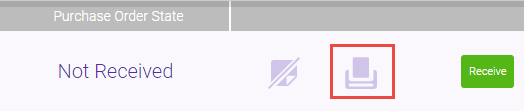
- In the Purchase Orders search results screen, select Print in the right column of the PO.
- From within a saved Purchase Order, select Print from the row of buttons at the bottom of the screen.

- The MI100 report screen automatically opens with the date range already set to include the PO.
To print barcode labels from a received Purchase Order
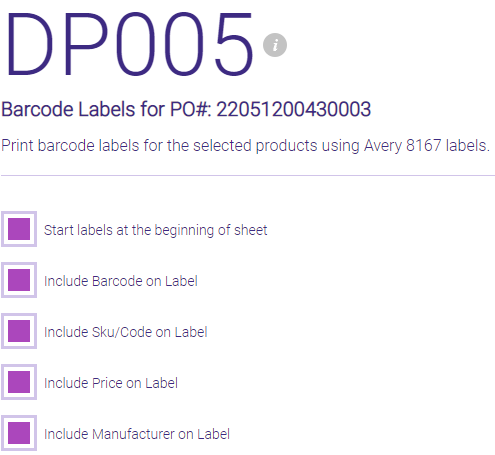
Barcode labels can be printed at any time once you are in "Receival" mode. Selecting Print Labels for Received Items opens the DP005 report directly from the received PO in a "special" mode designed to print barcodes for received Purchase Order items. This mode is available only if opening the DP005 from the received PO screen, as described below.
- Use the search form to locate the received Purchase Order that you wish to print.
- Select the received Purchase Order.
- Place the PO in "receival mode" by select Receive from the bottom-right of the PO.

- This reveals the Print Labels for Received Items button.
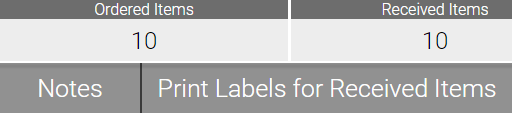
- Select Print Labels for Received Items to open the Print Barcode Labels window. Select which products and how many labels of each to print. For POs in a "Not Received" state, this window will default to the Qty Ordered view. Otherwise, the Qty Type defaults to Received Today.
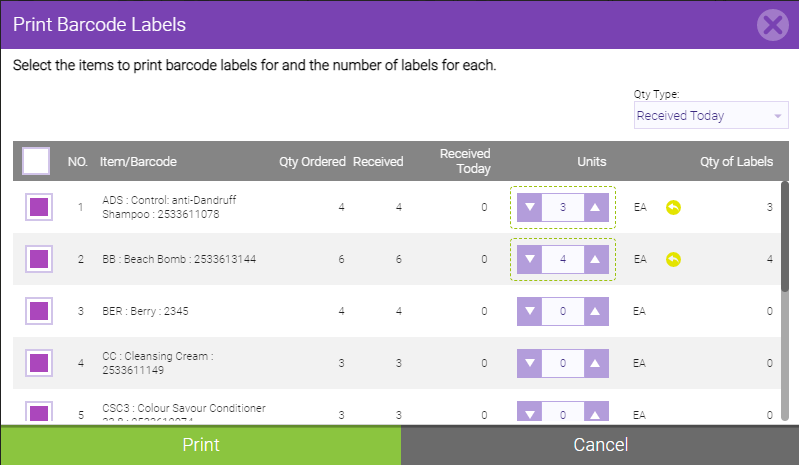
- Select Print to open the DP005 report for this specific Purchase Order, and run the report to get a printable version of the barcode labels.