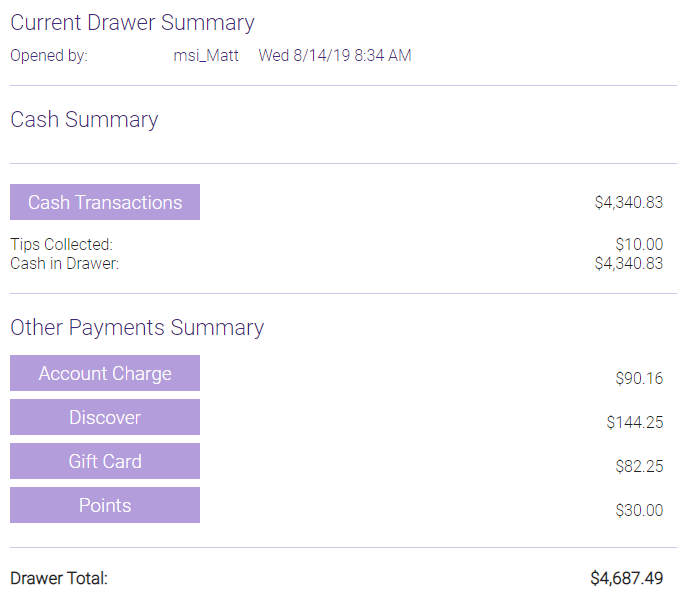
Viewing Transaction Details in Drawer Manager
If a drawer is open, you can view details on cash transactions and non-monetary transactions at any time.
Select reload to refresh all totals on-screen (to account for updates made to the drawer while you have it open).

To view current transaction details
- Open Drawer Manager:
- Go to Meevo > Register > Register, or type register into the Convobar. At the top of the Smart Receipt, select Edit beside the drawer name to open Drawer Manager on the right panel.
- Navigate to Meevo > Register > Drawer Manager, or type drawermanager into the Convobar to open the Drawer Manager.
- In the Cash Summary section, select Cash Transactions to view those details.
- In the Other Payments Summary section, select a payment type for details on that payment type.