Inserting a Transaction into the Past
In day-to-day operations, it’s not uncommon for transactions to be missed, delayed, or entered incorrectly. Inserting a transaction into the past (backdating) allows your business to correct these situations by recording the activity on the date it actually occurred, ensuring reporting, payroll, and client records remain accurate and aligned.
More on inserting a transaction
When inserting a transaction into the past, note the following:
- Only services are allowed on a transaction inserted into the past.
- Meevo treats that transaction as though it actually occurred on the selected insert date, so it will be reflected correctly in reporting and payroll.
- Client account credits cannot be used for payment, so Online Booking deposits will not count towards transactions inserted into the past. Those credits will remain on the account after finalizing the transaction.
- CareCredit cannot be used for payment.
Payroll implications
- There are no restrictions on inserting a transaction into a Previous or Archived payroll, so be aware that inserting a transaction can create a payroll conflict.
- If applicable, Current and Previous payrolls can be recalculated to account for the inserted sale.
- Archived payrolls can never be recalculated, so be careful not to insert a transaction into an Archived payroll period.
Security
- Security keys in Security Administration control access to the Insert Transaction button.
- The "edit transaction" setting on the user’s Security Role determines how far back the transaction can be inserted. The maximum length is 32 days in the past.
To insert a transaction
To insert a transaction into a previous day:
- From Transaction Editor, select Insert Transaction from the toolbar.

- In the Insert Transaction window, you’ll first select the date, drawer, and time that will be tied to the transaction you’re inserting.
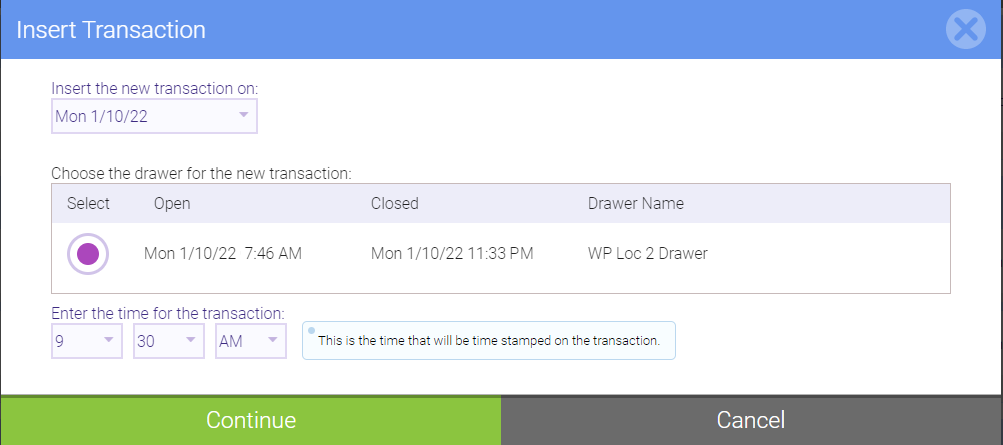
- The Transaction Editor Setting in the user's Security Role determines how far into the past they can insert the transaction.
- The available drawers are drawers that actually have drawer history – that is, drawers that were open – during the selected date.
- The time you select must be within the drawer’s opening/closing time range on that day.
- Selecting Continue brings you to the register, where you'll select a paying client.
- The register tiles are not available, as an inserted transaction must be linked to a client profile.
- If the selected client had an appointment on the book that was not checked out on the selected date, you’ll receive the usual prompt asking if you would like to bring those services into the register.
- After adding the client, you’ll select one or more services:
- Only services that were created on or before the selected insert date can be added to the Smart Receipt.
- Refunds cannot be added to the Smart Receipt when inserting a transaction.
- Discounts are not automatically applied, but you can manually apply one by selecting from a list of discounts that was available on the insert date.
- A client can earn points as a result of a transaction inserted into the past, as long as a points promotion was available on the selected insert date.
- Select the servicing employee. You can specify a tip amount here as well.
- Note the following regarding redemption and payment of an inserted transaction:
- A client can redeem a service from a package as long as the liability was available on that date.
- A transaction inserted in the past cannot be paid for using points, gift cards,
client account, or Self-Pay.
- Select Pay Now to advance to the Payment Options step. The available Payment Types when inserting a transaction in the past are Credit/Debit, Cash, Check, and Other.
Note: CareCredit cannot be used for payment when inserting a transaction into the past.
- After the sale is finalized, the transaction will appear in Transaction Editor on the insert date, and all sales details (for reporting, history, etc.) will be attributed to the insert date.
- Important: The selected drawer's closing totals will reflect the inserted transaction, but there will be a "shortage" caused by the transaction that will need to be balanced by editing the drawer's closing details.
- If applicable, Current and Previous payrolls can be recalculated to account for the inserted sale. Archived payrolls can never be recalculated, so be careful not to insert a transaction into an Archived payroll period.
- Note that if the inserted transaction is paid for using a credit card, the card transaction will appear in today's batch. As a result of this, today's batch total won't match today's overall total, and the insert date's batch totals won't match the overall total from the insert date.
- 5 Star Ratings notifications are not sent after inserting a transaction on a past date.