MR160: Product Bundles Sales
The MR160 report displays Product Bundle sales within the date range, including transaction number, client, bundle name, bundle content, and more.
Report definitions
- Bundle Name: The name of the bundle according to its Display Name in the definition.
- Qty: The quantity of the bundle that was sold.
- Total: Total sales amount of that bundle, minus refunds.
- Total for Selected Date Range: The total quantity and net sales of product bundles, minus refunds.
- Transaction: The transaction number associated with the sale.
- Sold By: The employee credited with selling the bundle.
- Client: The client who purchased the bundle.
- Bundle Name: The name of the bundle according to its Display Name in the definition. If Display Product Bundles Contents is enabled, this column also shows the contents of the bundle.
- Qty: The quantity of the bundle that was sold.
- Total: Total sales amount of that bundle, minus refunds.
- Total for Selected Date Range: The total quantity and net sales of product bundles, minus refunds.
Setting up the MR160 report
- Type MR160 in the Convobar, or go to Meevo > Reports > Register/Sales, and then select the MR160 report.
- Select a date or date range for running the report:
- To run a report for a specific date range, select Custom and specify the Start Date and End Date for the report.
- Otherwise, select a predefined date or range (Yesterday, This Week, Last Week, etc.).
Note: If you select a predefined range (a date other than Custom), you can still change the Start Date and End Date. Doing so automatically changes the date range to Custom.
- Sort Report By "Sold By": If enabled, sorts the report by who sold the bundle. Otherwise, the data is sorted by bundle name.
- Page Break after Sort Option: If enabled, the report will begin on a new page for each employee who sold a bundle. This option is available only if Sort Report By "Sold By" is enabled.
- Display Report in: Select a report mode.
- Summary: Displays the bundle name, quantity sold, and price.
- Detail: Displays the same details as Summary mode, along with transaction number and the client who purchased the bundle.
- Display Product Bundles Contents: If enabled, the products in the bundle will be listed in the report. This option is available only if Detail mode is selected.
-
All Employees: Enable this checkbox to run the report for all employees within the date range. This includes active, inactive (including terminated), and deleted employees. Or, to run the report for specific employees, deselect the checkbox and use the drop-down to select employees or Employee Categories. You can show or hide inactive employees in this list, but deleted employees will never appear here. Note the All Employees "bubble" in the Employee list selects all employees in that list; it is not the equivalent of selecting the All Employees checkbox.
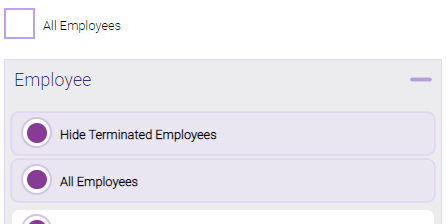
Note: Selecting All Employees will also return any data tied to the House employee.
Running the report
- When you are ready to generate the report, select a Report Format beside the Run Report button.

- Here is a rundown of each format type:
- PDF: Each time you select Run Report with PDF selected, Meevo opens a separate browser tab that displays the PDF'ed report. Meevo remains on the setup page, so you can quickly jump back over to Meevo to run more date ranges or other reports. Each PDF report you run will open its own browser tab, so you can easily review and compare reports by simply jumping between browser tabs.
Note for viewing on iOS: If viewing a PDF on a mobile device running iOS, swipe from left to right on the screen to return to Meevo. - HTML: This is our original legacy format, which opens the report within Meevo. All of the functionality within that report is still there and available via the toolbar.

- XLSX: Each time you select Run Report, your browser auto-downloads the report in .xlsx format. Select the downloaded file in the browser footer to open the spreadsheet.
- PDF: Each time you select Run Report with PDF selected, Meevo opens a separate browser tab that displays the PDF'ed report. Meevo remains on the setup page, so you can quickly jump back over to Meevo to run more date ranges or other reports. Each PDF report you run will open its own browser tab, so you can easily review and compare reports by simply jumping between browser tabs.
- Select Run Report to generate the report in your chosen format. Depending on the type of report and criteria you entered, this process may take a few minutes.