MR255: Service Charges
The MR255 displays service charges that were collected within the date range, organized by type, employee, or service.
Report definitions
- The MR255 displays Service Charges categorized by the Type selected in the Service Charges definition: Employee Fee, Employee Tip, House Fee, House Tip, and Ticket Charge.
- This report includes Transient and Anonymous clients. Refunds are deducted from Amounts, but refunds are not deducted from the Qty because with or without a refund, you still collected that number of service charges.
- All House fees and tips are attributed to the House, regardless of who was credited with the sale itself.
- When credit for a service that included a service charge is split between employees, the fee is split among the employees credited with the sale according to the percentage defined in the register.
- If you selected Display
Detail:
- For the Employee sort option, the output also displays the clients who were serviced by the employee and the number and cost of each fee.
- For the Service sort option, the output also displays the services associated with the charge, the number and cost of the free, and the service category sub-total.
Setting up the MR255 report
- Type MR255 in the Convobar, or go to Meevo > Reports > Register/Sales, and then select the MR255 report.
- Select a date or date range for running the report:
- To run a report for a specific date range, select Custom and specify the Start Date and End Date for the report.
- Otherwise, select a predefined date or range (Yesterday, This Week, Last Week, etc.).
Note: If you select a predefined range (a date other than Custom), you can still change the Start Date and End Date. Doing so automatically changes the date range to Custom.
- Select a sort option. You can sort the report by Service Charge, Employee, or Service. Ticket Charges will always display when you select Service Charge or Employee.
- Display Detail: If sorting by Employee, enabling this also displays the clients who were serviced by the employee and the number and cost of the fee.
- Page Break on Employee (Employee sort option only): When enabled, each employee begins on a new page. You must select Display Detail for this option to be available.
-
All Employees: Enable this checkbox to run the report for all employees within the date range. This includes active, inactive (including terminated), and deleted employees. Or, to run the report for specific employees, deselect the checkbox and use the drop-down to select employees or Employee Categories. You can show or hide inactive employees in this list, but deleted employees will never appear here. Note the All Employees "bubble" in the Employee list selects all employees in that list; it is not the equivalent of selecting the All Employees checkbox.
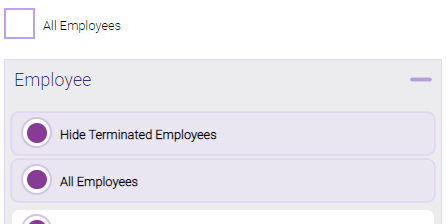
Note: Selecting All Employees will also return any data tied to the House employee.
Running the report
- When you are ready to generate the report, select a Report Format beside the Run Report button.

- Here is a rundown of each format type:
- PDF: Each time you select Run Report with PDF selected, Meevo opens a separate browser tab that displays the PDF'ed report. Meevo remains on the setup page, so you can quickly jump back over to Meevo to run more date ranges or other reports. Each PDF report you run will open its own browser tab, so you can easily review and compare reports by simply jumping between browser tabs.
Note for viewing on iOS: If viewing a PDF on a mobile device running iOS, swipe from left to right on the screen to return to Meevo. - HTML: This is our original legacy format, which opens the report within Meevo. All of the functionality within that report is still there and available via the toolbar.

- XLSX: Each time you select Run Report, your browser auto-downloads the report in .xlsx format. Select the downloaded file in the browser footer to open the spreadsheet.
- PDF: Each time you select Run Report with PDF selected, Meevo opens a separate browser tab that displays the PDF'ed report. Meevo remains on the setup page, so you can quickly jump back over to Meevo to run more date ranges or other reports. Each PDF report you run will open its own browser tab, so you can easily review and compare reports by simply jumping between browser tabs.
- Select Run Report to generate the report in your chosen format. Depending on the type of report and criteria you entered, this process may take a few minutes.