Changing Schedule Manager Views
To jump ahead or back one week

- Jump forwards or backwards by selecting the left or right arrows.
- Select the date range on the left to open the calendar, and select a day to jump right to that week.
- Select Today to jump to the current week.
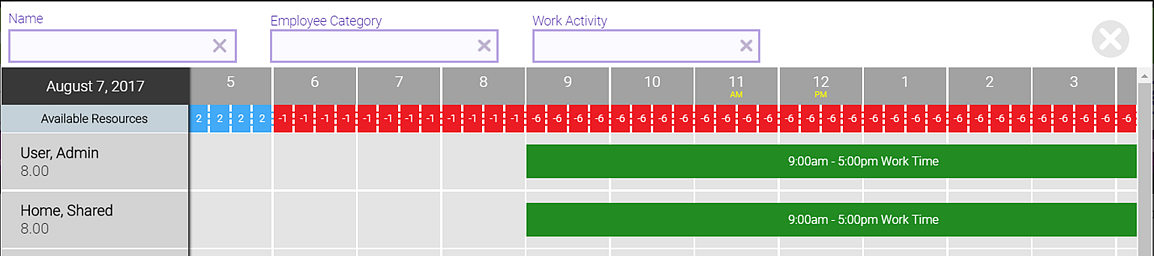
To view a Gantt chart of the selected day
The Gantt chart displays all schedules and available resources for the selected day. This is useful for viewing and identifying gaps in schedules.
- Select a date from the weekly column.

- Use the filters at the top of the chart to refine who appears. For example, you could select Front Desk from Employee Category to view the day's schedule for front desk employees only, or you could select Meeting from Work Activity to view all schedules with that Work Activity.
To view actuals
"Actuals" refer to the clock-in, clock-out, break-out, and break-in times for a given employee. In Schedule Manager, you can view and edit your employee's actuals.