Copying Schedules
There are two ways to copy an employee's schedule:
- Copying an individual day, which enables you to overwrite existing schedules with the selected day's schedule. This can be applied across multiple employees (for example, copying Alexa's Monday schedule and pasting it into AJ's Monday, Tuesday, and Wednesday schedules). This approach is ideal for making minor adjustments to the weekly schedule, as you can copy a single day and paste it into multiple days.
- Copying a schedule forward, which allows you to quickly set up an employee's future weekly schedules. This method copies the currently viewed weekly schedule for each selected employee and applies to the employee's future weeks. Schedules cannot be copied forward across employees (for example, you cannot copy forward Alexa's schedule to AJ's future schedules). This approach is best for creating new schedules or modifying existing schedules several weeks into the future for individual employees.
To copy an individual day
The Copy button on the Schedules Editor allows you to copy a day's schedule to one or more other days.
- You can copy a schedule in any view: Day View, Week View, or 2-Week View. Note you can copy schedules across views as well (for example, you can copy a day's schedule in Week View and then bounce between Day View and 2-Week View while selecting "Copy To" days).
- Select the day that you wish to copy. The Schedules Editor appears.
- Select Copy from the Schedules Editor.
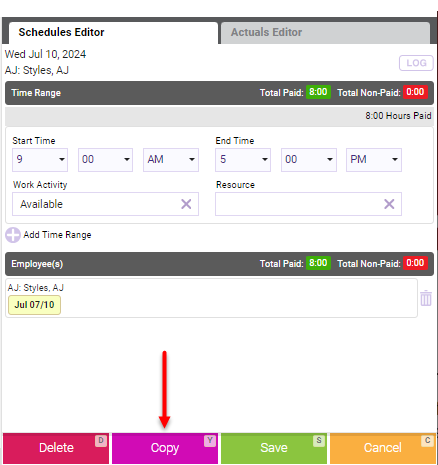
- Verify that the shift information in the Copy From section is what you want to copy.
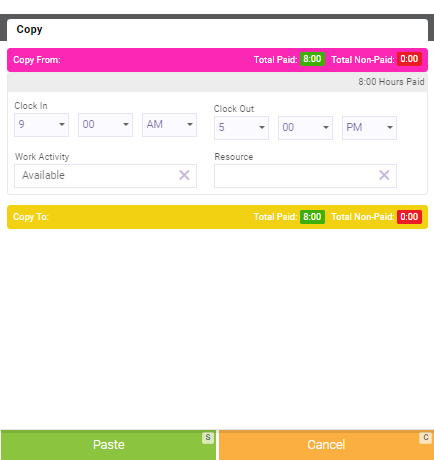
- In the calendar, locate and select the "destination" day or days to which this schedule will be copied. You can copy across weeks and even views (for example, copy the day in Week view and then paste it in 2-Week view). As you select days, they appear in the Copy To section.
- When ready, select Paste to copy the schedule to the selected days.
To copy a schedule forward
Tip: If an employee works on a rotating schedule, you can copy a schedule forward to every other week, every third week, or every fourth week as needed.
- You can copy forward a schedule using Week View or 2-Week View.
- In the schedule calendar, locate the employee's week that you want to copy forward. It is not necessary to select the week; just ensure that the week is the current view in the calendar. Their hours for the current week view will be copied forward to future weeks.
- Select Copy Forward from the bottom-left of Schedule Manager.
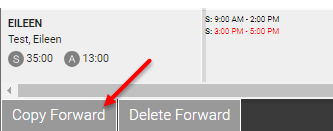
- The Copy Forward window appears.
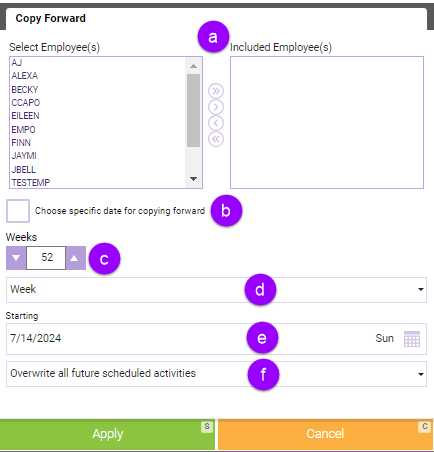
- Select Employees / Included Employees: Select the employees whose weekly schedule you will copy forward. Their hours for the current week view will be copied forward to future weeks.
- Choose specific date for copy forwarding: Selecting this option changes the Weeks field to a calendar date picker, where you can specify the end date for copying the schedule forward. There is no limit to how far into the future you can copy schedules using this method.
- Weeks: This determines how many weeks each employee's schedule will be copied forward from the current week. You can select a maximum of 52 weeks.
- Every: The weekly increment that this schedule should be copied forward (Week, Second Week, Third Week, Fourth Week).
- Starting: The date that the schedule copy will start.
- Rules: Determines how Meevo handles the overwriting of existing schedules.
- Overwrite All Future Scheduled Activities: All future schedules within the selected date range are overwritten by the schedule being copied forward.
- Ignore Future Days with Selected Work Activities: If future days within the date range include at least one of the selected Work Activities, those days are skipped and their scheduled hours/Work Activities remain unchanged.
- When finished, select Apply. If a pop-up message appears indicating you will be overwriting existing schedules, select Yes to proceed.
- As a best practice, scroll ahead and verify that the week copied forward as you intended.