Students and Teachers
With Students & Teachers, schools can track their students' and teachers' metrics separately from their employees's metrics. Students and teachers each have their own launchpad and can do everything in Meevo that employees can do, plus teachers can be selected as an overseer in a service or product transaction.
- Students and teachers can be set up for alerts, notifications, etc., just as employees can.
- Two-factor authentication (2FA) is a security method that, when enabled in Meevo, adds an extra layer to employee accounts beyond the username and password. Student and Teacher profile support 2FA; see Setting Up Two-Factor Authentication for details.
- Client History will display the teacher who oversaw the service, as well as the student who acted as the Service Provider.
- Student and teacher activity in Meevo will be audited and tracked as employee activity in the Activity Log.
- Student and teacher transactions will appear in Transaction Editor.
- Each student and teacher profile counts as a user in Meevo, just like employee/user profiles.
How do I enable this feature?
The Students & Teachers feature is available in the MeevoXchange under Business Boosters.
How do Students & Teachers work with Central Office and multiple locations?
In a multi-location business model, locations add students and teachers. Central Office can only view student and teacher profiles.
How do I create student and teacher profiles in Meevo?
Student and teachers are created in Meevo in the same way employees are, only from Data > Students or Data > Teachers (or type student or teacher into the Convobar).
See Adding an Employee Profile for details on the profile fields, as employee profiles are nearly identical to what you'll see in Students and Teachers. Be sure to also review the following notes on student and teacher profiles:
- You cannot create a new student or teacher user at their home location, as students and teachers are always employees at the home location.
- If a student or teacher is granted access to a location other than their home location, that student or teacher will initially be a user only at the new location. Just like with multi-location employees, the user profile must be opened at the new location and Is Teacher or Is Student must be selected in order to create a new teacher or student profile.
- If there are multiple services on the Smart Receipt and you select an overseeing teacher, Meevo automatically lists that teachers as the overseer for all services on the receipt. You can edit the overseer for each service if needed.
- Only students can be "overseen," and only teachers can be selected as an overseer.
- If a teacher has Allow sales enabled in the profile, that teacher can be selected in the register as the credited Employee in transactions.
- If a teacher has Show on Schedule enabled, that teacher can also be booked just like any regular employee.
| Employee Profile | Student Profile |
| Hire Date | Start Date |
| Terminate Employee | Graduate Student |
| Termination Date | Graduation Date |
OK, I created student and teacher profiles. Now what?
Now, you can create a schedule for each student (and teachers, if desired, since they can perform services as well) so that they appear in the Appointment Book. Then, you can book an appointment with a student and, in the register, select an overseeing teacher before finalizing the sale.
Booking and Ringing Up a Student
To book a service with a student
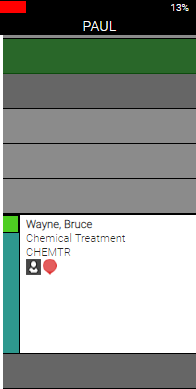
After you create a student profile and schedule for that student, the student will appear in the Appointment Book, where they can be booked just like a regular employee. Below, Paul is a student. He appears in the book just as any employee would, and we can book a service with him through the usual methods.
To ring up a student-performed service or student-sold product
When ringing up a student-performed service or student-sold product in the register, you will be able to select the overseeing teacher. This teacher field appears in the register if checking out an appointment from a student's column in the Appointment Book, if adding a product in the register where the credited employee is a student, or if adding a service to the register where the credited employee is a student.
- The workflow is slightly different depending on how you are ringing up the client:
- After selecting Checkout from the Appointment Book, you are brought to the register. Notice that the Smart Receipt displays Overseen by: No teacher selected, and the right pane is on Teacher selection.
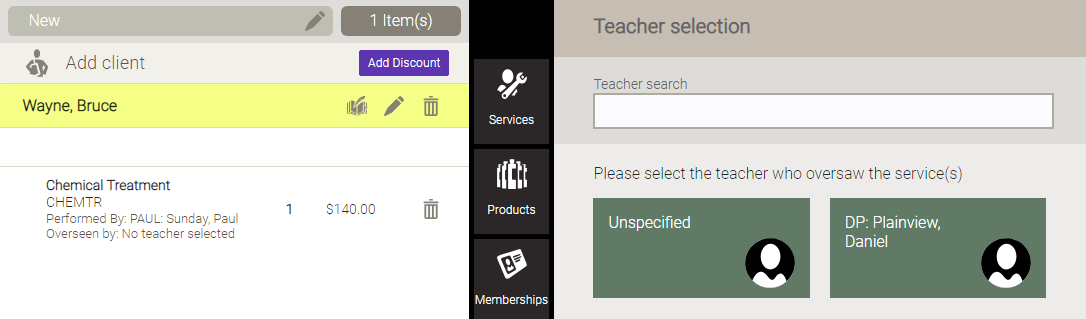
- If adding a service or product directly in the register, select the student to receive credit (the one who performed the service or sold the product). The Teacher selection automatically appears in the right pane. In this scenario, the Smart Receipt remains blank until you select an overseeing teacher.
- Select the teacher who oversaw the service. The Smart Receipt is automatically updated with the teacher's name.

To select or change a student or overseeing teacher in Transaction Editor
If you did not select an overseeing teacher in the register, or if you'd like to change the overseeing teacher or student, you can do this from the Transaction Editor.
- Locate the transaction.
- Edit the fields and save your edits when finished.
