Changing Locations in Meevo BI
When a Meevo user is granted access to Meevo BI from a location, they will be able to view that location's data in the Meevo BI app. If granted Meevo BI access from multiple locations, a user can change between those locations in the app using any of the methods described below.
Switch between locations while viewing metrics
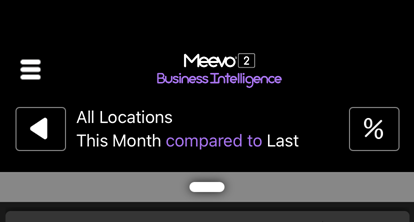
As long as you haven't drilled down into any metrics (like in the image below; no metric appears in the top bar), you can simply swipe right to view the current data for the next location. This allows you quickly compare data across locations.
If you've set up Location Groups, you can swipe left from this view to display data by those groups.
Change locations using the filter
This Meevo BI topic on filters explains how to change locations using filters.
Change the Company Code before logging in
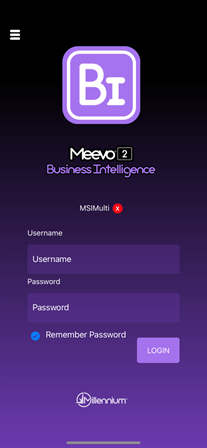
To change the Company Code, tap the red x beside the Company Code on the login screen. This brings you back to the Company Code screen, where you can enter another code. As a best practice, you should use the company code that is entered in a location's Meevo Integrations > Meevo BI.
Note if your business changes the Meevo URL in Meevo Business Information, employees using the Meevo BI app will need to reconnect to Meevo BI using that new Company Code. See Logging into Meevo BI for more details.