Checking Out a Product in Employee Supply Usage
To check out a product
- Type supply into the Convobar, or go to Meevo > Inventory > Employee Supply Usage.
- The slideout pane appears by default. Use this pane to search through existing supply usage records. You can minimize this pane by selecting the slideout arrow.
- A blank row appears on the left pane. This is where you will add products to the list.

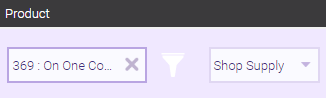
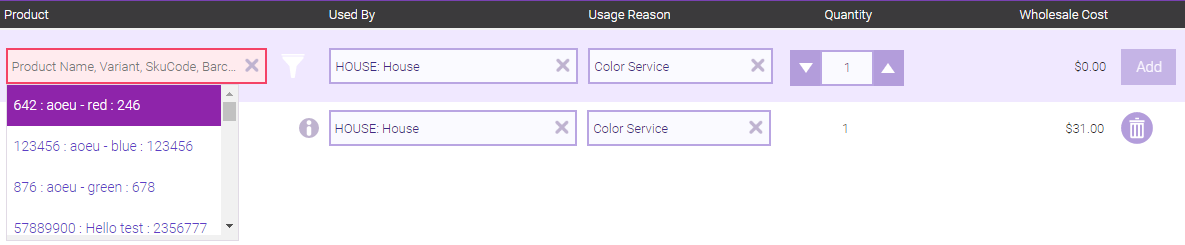
- Product: Locate the product by entering the product name, variant name, SKU code, barcode, or by scanning the item with a barcode reader. Discontinued products do not appear in this list, but you can manually add them by entering their SKU or barcode.
- If the product is part of more than one inventory list, select from which list Meevo should deduct.
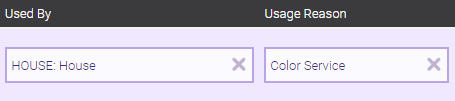
- Used By: Select the employee who is removing the inventory supply.
- Usage Reason: Select the Usage Reason for needing the supply item.
- Quantity: Enter the quantity of units being removed. This must be a whole number, and indicates the number of on-hand that will be deducted for that product. The current on-hand amount is displayed beside the quantity.
- Wholesale: On the day the usage item is added, Meevo applies the product’s Wholesale value according to the product definition, since the actual Inventory Value hasn’t been determined yet. Overnight, Meevo calculates Inventory Value and assigns the Employee Supply Usage item a new FIFO-based value if needed.
- Select Add to add the record to the list.
- The Product drop-down becomes active immediately after adding the item, so you can quickly select another product. Your selections in the Used By and Usage Reason fields persist, so you can continue to add products quickly without having to select the same employee and Usage Reason for each product.
- As you add records to the list, the Total Wholesale Cost in the bottom-right corner is also updated.
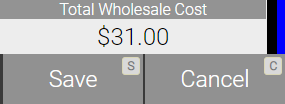
- When finished, select Save. The product quantity is immediately deducted from its on-hand count.
To edit a usage record
Note: If the record was created today, you can delete or edit the record. If the record was not created today, your only available option is to undo the record. Undoing the record returns the product back to inventory and locks the record to restrict further editing.
- Locate the record and select Edit.
- Make changes to the record as needed. You can edit the Used By and Usage Reason fields, but the Product and Quantity fields cannot be changed.
- When finished, select Save.