Competitive Intelligence: Insights and Reporting
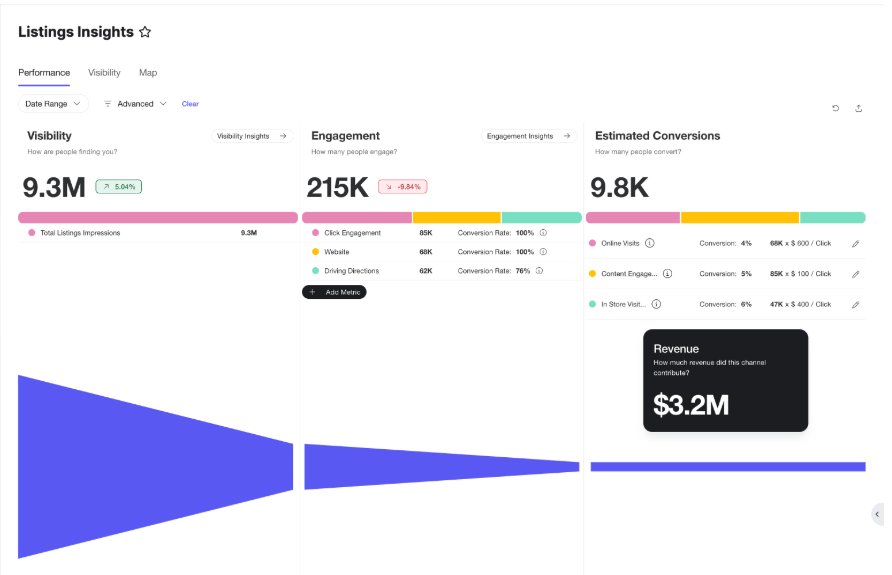
After Search Tracker is set up, the Search Tracker metrics about all your tracked locations are displayed under Listings > Insights.
There are three screens in Listings Insights. The Performance screen displays data to all businesses using OPM. The Visibility and Map screens display data only to businesses using Competitive Intelligence (Advanced OPM).
Visibility
The Visibility tab displays reports on key metrics for your locations. You can filter the reports by keywords and date range. You can also use the Advanced filter options to filter by any other entity criteria (such as region, name, etc.)
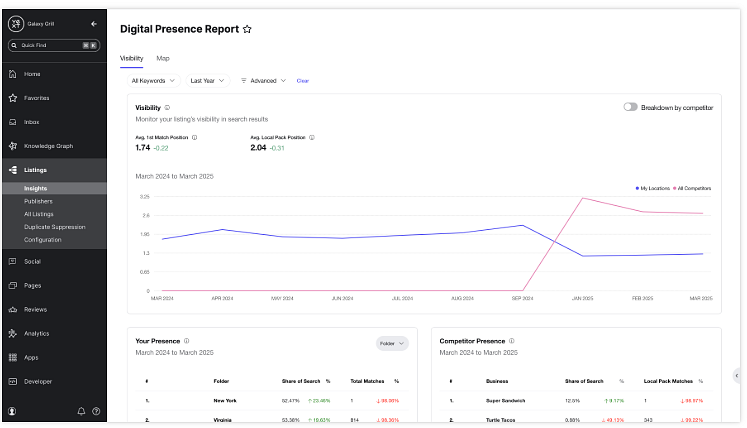
The reports here include your selected locations’ visibility in search results over time, your presence in search compared to the total search volume in your category, your search presence compared to competitors, and your locations’ performance in search for your chosen keywords.
Map
The Map tab displays search data about your tracked locations in a visual and interactive map. You can narrow the results by filtering for keywords and advanced entity criteria.
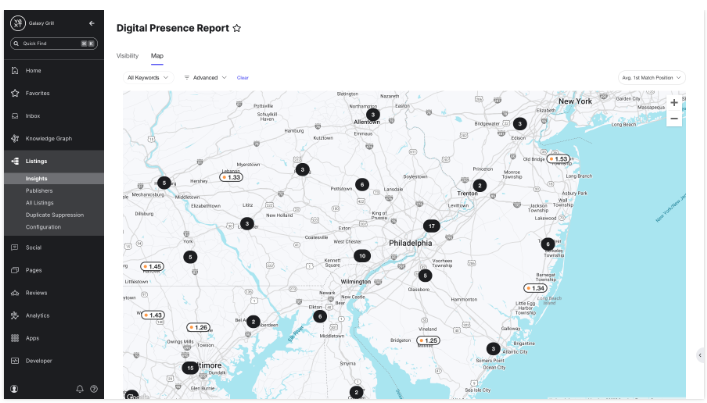
Each icon represents one of your tracked locations, with a score based on how well the location is performing based on your chosen search metric. Hover over each location to see expanded information for a location by different search metrics.
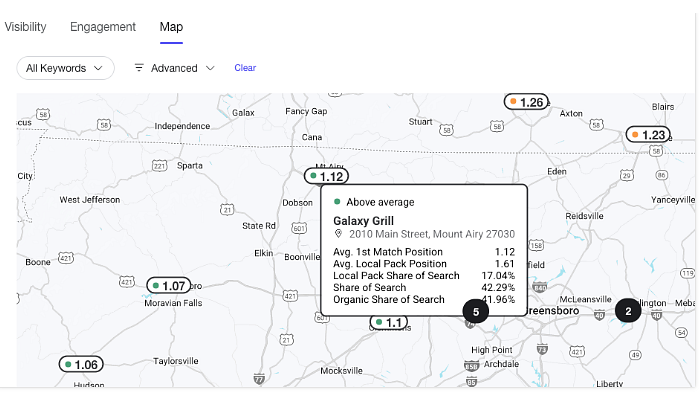
View your locations on the map by different search metrics by choosing from the drop-down menu in the upper right of the map. Choose search metrics to display on the map
To create a Competitive Report
- Click Analytics in the navigation bar and click Report Builder.
- Remove all Metrics, Dimensions, and Filters.
- Click + Add Metric, hover over Reviews, and select Rolling Average Rating.
- Click + Add Dimension, hover over Competitors, and select Competitor.
- Click Add Filter, hover over Competitors, and select Site.
- Click on the drop-down button and check the box next to each competitor site you would like to add.
- Click Apply Changes. For more information about creating an analytics report, see the Yext Help article Create a Custom Analytics Report.