Using the Appointment Book Smart Assistant
The Smart Assistant provides a quick view of booked appointments and allows you to perform a host of actions directly from the assistant.
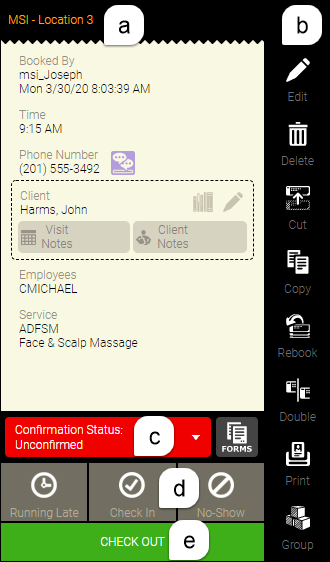
a. Details
This section provides details on the appointment; you can highlight and copy the content in the Smart Assistant if you need to paste it into another application.
- The current location appears in top-left portion of the assistant
- Booked By / Created By: This field indicates the user or Meevo feature responsible for booking or creating the appointment.
- When an appointment is in a "booked state," the Smart Assistant displays Booked By, the user who booked the appointment, and the date and time.
- Created By appears for appointments that are not in a booked state (Pending, No Show, Checked In, and Running Late appointments).
- If toggling the appointment to a booked state (for example, accepting a Pending appointment), the Smart Assistant changes this to Booked By, and if toggling to a non-booked state (for example, if toggling off the No-Show button), the Smart Assistant changes this to Created By.
- Time: The start time of the appointment.
- Phone Number: The client's primary phone number. The Send Text icon appears beside the Paying Client's phone number if there is a mobile number on their profile and text message notifications are enabled. Select this tab to go to the Paying Client's Send Txt Msg tab in Client Find, where you can send a one-way text to the client. Note if you are using the Textel integration, the Send Text icon brings you to Meevo Messenger.
- Employees: The servicing employee(s).
- Client: Provides relevant links to various areas of Meevo:
 Select this icon to view this client's future appointments in Client Find.
 Select this icon to open the History tab of the client's profile.
 Select this icon to open the client's profile in Edit mode.
Visit Notes: Brings you to the Visit Notes tab of the client's profile.
Client Notes: Brings you to the Client Notes tab of the client's profile.
- Service: The services on the appointment.
b. Smart Assistant actions column
This column provides a host of actions you can perform on the appointment and Appointment Book:
- Edit: Opens the Appointment Editor in edit mode.
- Delete: Deletes the appointment from the Appointment Book.
- Cut and Copy: Two methods of moving appointments.
- Rebook: If FOV is set up for the service or client, selecting this option opens the Rebook window.
- Double: A method of double-booking an employee.
- Print: Immediately prints work tickets for the selected appointment.
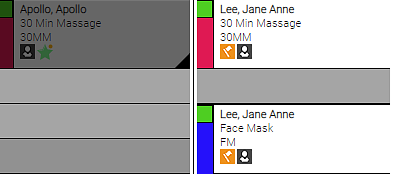
- Group: This “highlights” clients and services that were booked together in the Appointment Editor, and “shades” all other appointments on the Appointment Book.
c. Confirmation status
This is the confirmation status of the appointment. To the right is the Forms button, which launches any associated forms if Docs & Forms is enabled.
d. Day-of statuses
These are day-of statuses the appointment:
- Running Late means the client will arrive late for the appointment.
- Select the Check In button to check a client in for an appointment.
- No Show means the client did not arrive for the appointment, and there was no cancellation.
e. Check Out
Select Check Out to check the client out for all appointment services.